Many developers running OpenClaw locally hit a familiar wall: memory pressure builds during a long conversation, context gets truncated, and the agent starts hallucinating mid-task. OpenClaw recommends an inference backend that can hold at least 64k tokens in context, and no consumer GPU with 8 to 16 GB of VRAM handles that at useful throughput.
The fix is a cloud GPU, but wiring it together surfaces its own friction: networking between the agent container and the inference server, model weights re-downloading on every pod restart, and the discovery that Docker Compose (the usual solution for multi-container setups) isn’t available on managed GPU platforms. This guide covers the full stack: vLLM or Ollama running on a Runpod GPU pod, OpenClaw pointed at that backend over Runpod’s Global Networking layer, and Network Volumes keeping your model weights warm between sessions.
The steps follow Runpod’s web console. No Kubernetes, no Helm, no sales call required.
Before You Start
This guide assumes you have:
- A Runpod account with credits loaded.
- A HuggingFace account with gated-model access approved for the model you plan to deploy. In this guide we use Llama 3.1, whichs requires you to accept its license terms before download.
- A HuggingFace API token, which you will pass to the inference pod as
HF_TOKENso vLLM can pull the weights.
OpenClaw itself is an open-source AI coding agent, distributed as the Docker image openclaw/openclaw:latest (published on Docker Hub). You do not install it locally for this setup; you run it as a container on Runpod.
Understanding OpenClaw’s Backend Requirements
Three requirements are non-negotiable before you touch Runpod:
- A reachable chat endpoint OpenClaw has a provider for. OpenClaw talks to each backend through a provider plugin: vLLM over the OpenAI-compatible
/v1/chat/completionsroute, and Ollama over its native/api/chatendpoint. Both are supported out of the box; you configure the provider during setup, covered later in this guide. - A model that supports at least 64k tokens of context. OpenClaw builds long context windows during multi-step agent tasks. Running a model whose native context is 4k or 8k will silently truncate prompts and degrade output quality. Two models confirmed on the Runpod hub that clear the threshold: Llama 3.1 70B Instruct and Qwen2.5 72B Instruct, both with a 131,072-token (128k) native context.
- A network-accessible URL the agent can reach at runtime. Local setups break down here because container-to-host networking is fiddly (
localhostinside a container refers to the container, not the host), and the machine can’t sustain the memory requirement anyway.
The memory math is what rules out a developer laptop. On a machine with an RTX 4090 (24 GB of VRAM), a 70B model in bfloat16 needs roughly 140 GB. Even a 13B model at 64k context with a full KV cache can push past 30 GB. Consumer hardware can’t cover that, which is why a cloud GPU architecture is required, and the first decision is which inference backend to run on it.
vLLM vs. Ollama on Runpod: Making the Call
Both backends work, but they are built for different scenarios.
| Criterion | vLLM | Ollama |
|---|---|---|
| Deployment path | Serverless Quick Deploy or GPU Pod | PyTorch GPU Pod template, then install Ollama |
| API path OpenClaw uses | /v1/chat/completions (OpenAI-compatible) |
Native /api/chat |
| Throughput | High (PagedAttention, continuous batching) | Optimized for single-user workloads |
| Context window config | --max-model-len flag (or MAX_MODEL_LEN in Runpod's vLLM worker template) |
OLLAMA_CONTEXT_LENGTH env var |
| Model management | HuggingFace model ID at deploy time | ollama pull after pod start |
| Best for | Multi-user production, concurrent requests | Single-user evaluation, fast model iteration |
| Public endpoint | Auto-generated (Serverless path) | Requires explicit port exposure |
Use Ollama if you are running OpenClaw for evaluation and want to swap models quickly. Use vLLM via the Serverless Quick Deploy path for production-grade throughput, or when serving OpenClaw to a team.
GPU Sizing Reference
| Model size | VRAM (full precision) | Recommended GPU | Notes |
|---|---|---|---|
| 7 to 13B | 14 to 28 GB | RTX 4090 (24 GB) | Dev/eval, fast iteration |
| 34B | ~68 GB (or ~20 GB quantized) | L40S (48 GB) | Balanced quality and cost |
| 70B | ~140 GB | A100 80GB or H100 | Production, full quality |
This guide runs Llama 3.1 70B Instruct at 64k context, so the A100 80GB row is the one to follow: it holds the 70B weights plus the KV cache that long agent sessions need without tipping into out-of-memory (OOM) errors, though exact OOM risk still depends on quantization level and batch size. A smaller card like the L40S can run a quantized 70B for shorter context windows, but quality may degrade on complex multi-step tasks because of quantization trade-offs.
Cost tracks that choice. Serverless bills per second and scales to zero between requests, which suits bursty or evaluation traffic; a persistent GPU Pod bills hourly for as long as it runs, which suits steady traffic that would otherwise keep paying cold-start latency. Check the current per-hour rate for your chosen GPU on Runpod’s pricing page before you commit to a tier. With your backend chosen and GPU sized, the next step is deploying the inference server on Runpod.
Deploying the LLM Inference Backend on Runpod
The steps below cover vLLM and Ollama in turn. Follow the path for the backend you chose above; you only need one.
The vLLM Path (Recommended for Production)
A fast route to a working OpenAI-compatible endpoint is Runpod’s Serverless vLLM Quick Deploy. The endpoint configuration completes in minutes, though the first request triggers the model download, which takes additional time:
- Open the Runpod console and navigate to Serverless.
- Under Quick Deploy, select the Serverless vLLM card.
- Approve model access on HuggingFace first: visit the model card, accept the license terms, then generate a HuggingFace API token.
- Enter the HuggingFace model ID:
meta-llama/Meta-Llama-3.1-70B-Instruct - In the pod’s Environment Variables, add
HF_TOKEN=<your-token>. Without it, vLLM fails silently during the model download. - Expand Advanced settings and set Max Model Length to
65536. - Select your GPU (A100 80GB for a 70B model).
- Click Deploy and note the endpoint URL from the Requests tab.
The generated endpoint exposes an OpenAI-compatible base URL of the form https://api.runpod.ai/v2/<endpoint-id>/openai/v1. This is your OPENAI_BASE_URL for OpenClaw’s config, and your Runpod API key is the bearer token.
If you prefer a persistent GPU Pod over Serverless (useful for latency-sensitive workloads where cold starts are a concern), deploy one from the vLLM template instead. Go to Pods → Deploy, search for the vLLM template, set MAX_MODEL_LEN=65536 in environment variables, and deploy. The pod exposes vLLM on port 8000.
The Ollama Path (Single-User Evaluation)
- Navigate to Pods → Deploy.
- Select your GPU type. An RTX 4090 works for 7 to 13B models; for 70B you will need an A100.
- Choose the latest PyTorch template. Runpod’s official Ollama tutorial uses it as a CUDA-ready base you install Ollama into. (A prebuilt community Ollama template from the Hub also works; if you use one, Ollama is already installed, so skip the install step below.)
- Click Edit Template, expose HTTP port
11434, and add the environment variableOLLAMA_HOST=0.0.0.0so Ollama listens on all interfaces. - Deploy the pod.
- Once it starts, connect via the Web Terminal, install Ollama, start the server, and pull the model:
Use ollama pull, not ollama run. The run subcommand opens an interactive shell that blocks the pod from serving the API. Once the pull completes, Ollama answers on port 11434, ready for OpenClaw to connect.
Persisting Model Weights with Network Volumes
Without a Network Volume, every pod restart means re-downloading your model from HuggingFace. A 40 GB model at typical datacenter speeds can take 10 to 20 minutes or more, a recurring tax on every restart.
Runpod Network Volumes are persistent storage at $0.07/GB/month. They mount at /workspace on your pods and survive pod stops, restarts, and re-deploys.
To create one:
- Go to the Storage page in the Runpod console.
- Click Create Network Volume, name it, and select the same region as your pod. This is required for the volume to attach.
- Size the volume for the quantization you plan to deploy:
- fp16 (full-precision 70B): at least 150 GB
- fp8 or GPTQ/AWQ quantized 70B: at least 80 GB
- In the pod template (Edit Template → Environment Variables), wire the volume to your inference server:
- For Ollama:
OLLAMA_MODELS=/workspace - For vLLM:
HF_HOME=/workspace(caches HuggingFace downloads to the volume)
- For Ollama:
After the first successful run, subsequent pod starts skip the download entirely because the model is already on the volume. On the Serverless Quick Deploy path, Runpod caches models internally, so a Network Volume is most valuable for persistent GPU Pod deployments. With the inference backend running and model weights persisted, the next step is making sure the context window is large enough before OpenClaw connects.
Configuring the 64k Context Window
The 64k context window doesn’t happen by default on either inference server. You have to set it explicitly, and the place to do it is during deployment.
For vLLM (Serverless or GPU Pod): the Max Model Length of 65536 from the deploy steps is what unlocks 64k context. It caps the maximum sequence length vLLM accepts, which also bounds the KV cache memory it reserves. If the model’s native context is lower than 65,536 tokens, vLLM falls back to the model’s limit and logs a warning at startup, so verify the model you are deploying (Llama 3.1 70B Instruct or Qwen2.5 72B Instruct) natively supports 128k context to avoid silent truncation.
For Ollama: in the pod template’s Environment Variables section, add OLLAMA_CONTEXT_LENGTH=65536. (The older OLLAMA_NUM_CTX variable is deprecated as of Ollama 0.5.) OLLAMA_CONTEXT_LENGTH is read at pod startup, so if you add it to an already-running pod, restart the pod for it to take effect. Without an explicit override, Ollama defaults to a VRAM-based context limit, which may be lower than the base model supports. Setting OLLAMA_CONTEXT_LENGTH explicitly guarantees OpenClaw gets the context it needs for long agentic conversations.
One practical note: 64k context with a 70B model consumes significant GPU memory for the KV cache on top of the model weights. If you are seeing OOM errors during long agent sessions, drop to OLLAMA_CONTEXT_LENGTH=32768. For vLLM, the relevant control is GPU memory utilization: a bare vLLM process takes it as the --gpu-memory-utilization command-line flag, and Runpod’s vLLM worker template exposes the same setting as the VLLM_GPU_MEMORY_UTILIZATION=0.85 environment variable on a persistent GPU Pod. On the Serverless Quick Deploy path, GPU memory allocation is managed by Runpod’s scheduler and cannot be overridden either way; if you hit OOM there, reduce Max Model Length instead (try 49152 for a 48k context). Thirty-two thousand tokens is sufficient for many OpenClaw tasks and reduces KV cache pressure.
Networking: Getting OpenClaw to Reach the Inference Backend
Docker Compose isn’t supported on Runpod. Runpod manages Docker directly, and each pod runs its own container, so the multi-container orchestration that works on your laptop doesn’t translate here.
You have two supported options.
Two pods with Global Networking (recommended). Each pod gets a *.runpod.internal private hostname, but only when both pods are deployed in the same Runpod region. Pods in different regions cannot reach each other through Global Networking, so select the same region for the inference pod and the OpenClaw pod. Pods then communicate at http://<pod-id>.runpod.internal:8000 (vLLM) or http://<pod-id>.runpod.internal:11434 (Ollama) with no public port exposure. The private networking approach keeps components isolated, secure, and independently scalable.
Single pod with a custom Dockerfile. Package the inference server and OpenClaw in one image, starting the inference server in the background before launching OpenClaw. It is faster to stand up but couples the two services, which suits a quick prototype.
To enable Global Networking, check the Global Networking checkbox under Instance Pricing during pod deployment. Do this on both the inference pod and the OpenClaw pod (see the Global Networking documentation for current UI details and hostname format). Runpod handles the rest.
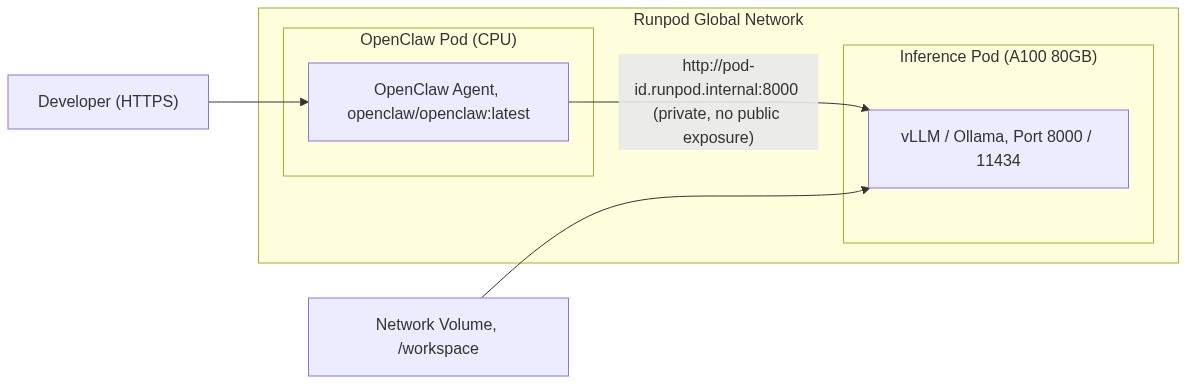
For the Serverless vLLM path, networking is simpler. The Quick Deploy generates a public HTTPS endpoint automatically. Use that URL directly in OpenClaw’s config with the Runpod API key as the bearer token, with no Global Networking checkbox required. Treat that public URL with care: the Runpod API key in the bearer token is the only thing gating access to your endpoint, so keep it secret and do not expose the OpenClaw port publicly without its own authentication. With networking in place, deploy the OpenClaw container and point it at the inference backend.
Running OpenClaw as a Container on Runpod
Pick up with the topology you settled on in the networking section. The two-pod approach comes first.
Two-Pod Approach (Recommended for Production)
Deploy OpenClaw as a separate Runpod pod. A CPU pod is sufficient because OpenClaw doesn’t run local inference; it coordinates tool calls and delegates LLM completions to the inference pod.
- Go to Pods → Deploy and select a CPU pod type.
- In the container image field, enter
openclaw/openclaw:latest. Verify the image tag against the project’s release page before deploying. - Enable Global Networking (as configured in the networking section above).
- Click Edit Template → Environment Variables and configure the LLM endpoint.
How you configure the endpoint depends on the backend. OpenClaw reaches vLLM through its OpenAI-compatible API, so the vLLM paths use the standard OPENAI_* environment variables. Ollama is different: OpenClaw talks to it through a native Ollama provider defined in ~/.openclaw/openclaw.json, not the OPENAI_* variables.
For vLLM via Global Networking, set these environment variables. A self-hosted vLLM pod does not validate the key unless you launched vLLM with --api-key, so any non-empty placeholder works here:
For Serverless vLLM (public endpoint):
For either vLLM path, connect via the Web Terminal and run openclaw onboard. The wizard prompts for a provider URL (paste the OPENAI_BASE_URL value, for example http://<pod-id>.runpod.internal:8000/v1) and an API key (paste the OPENAI_API_KEY value), then writes the result to ~/.openclaw/openclaw.json.
For Ollama, configure the native provider directly in ~/.openclaw/openclaw.json. OpenClaw uses Ollama’s /api/chat endpoint rather than the OpenAI /v1 route, so the baseUrl is the bare pod host and port, and the provider’s api is set to ollama:
Then select the model so OpenClaw routes requests to it:
To confirm either configuration was written correctly:
Single-Pod Approach (Fast Prototype)
If you want both services in one pod, write a Dockerfile that launches Ollama in the background before starting OpenClaw:
Install Ollama with its official script rather than copying the binary alone. Ollama’s Linux build ships its own CUDA runner libraries, so it needs only the host’s NVIDIA driver, which a Runpod GPU pod provides at runtime; you do not install the CUDA Toolkit in the image. Bake an openclaw.json whose Ollama provider points at the co-located server on http://localhost:11434, and copy it into the image.
Build and push this image to Docker Hub, then enter it in the Custom Image field in Runpod’s Deploy Pod interface:
Upgrading either component means rebuilding and redeploying the entire image, which is acceptable for a prototype but creates coupling that grows harder to maintain over time.
Testing the Full Stack
Don’t wait until OpenClaw throws an error mid-task to discover your inference server is misconfigured. Run these three checks in sequence first.
Step 1: Confirm the model is active.
For vLLM, you should see the model name you deployed; a 404 or connection refused means the server hasn’t finished loading, so check the pod logs and wait for the Application startup complete message. For Ollama, /api/tags lists the models you pulled; an empty list means the ollama pull has not completed yet.
Step 2: Send a real completion request.
For vLLM, send an OpenAI-style chat completion:
For Ollama, send the same request to its native /api/chat endpoint (the path OpenClaw uses):
That request verifies the full inference path end-to-end, not a health endpoint alone. A valid JSON response carrying the model’s reply means your inference backend is ready for OpenClaw.
Step 3: Trigger a multi-step agent task. From the OpenClaw Web Terminal, send a one-shot message to the agent (the gateway must be running):
This exercises tool calling, model reasoning, and context handling in sequence, the same pattern OpenClaw uses on real work. A successful result, file names and a brief summary in the response, is strong evidence the full stack is wired correctly: inference, tool execution, and networking all had to cooperate to produce it.
The most common failure at this stage is a context length error. If you see one, revisit the context settings in “Configuring the 64k Context Window” before going further. If the stack passes all three checks, OpenClaw is ready for real work. The questions below cover the scenarios most developers hit after initial setup.
Frequently Asked Questions
Does OpenClaw work with Runpod Serverless, or does it require a persistent GPU Pod?
Both work. The Serverless vLLM Quick Deploy is a fast path to a production endpoint and handles cold starts automatically. Persistent GPU Pods are preferable when you need consistent low latency and can justify the always-on cost.
Can I run OpenClaw and the inference server on the same Runpod pod?
Yes, using a custom Dockerfile that starts Ollama in the background before launching OpenClaw. This is acceptable for prototyping, but upgrading either service requires a full image rebuild and redeploy. The two-pod approach with Global Networking is the recommended architecture for production use cases and team deployments.
What happens to my model weights when I stop a pod?
Without a Network Volume, weights re-download on every pod start (see “Persisting Model Weights with Network Volumes” for setup). With one attached and HF_HOME=/workspace (vLLM) or OLLAMA_MODELS=/workspace (Ollama) set, weights persist across pod restarts at $0.07/GB/month.
Which models are confirmed to meet OpenClaw’s 64k context requirement?
Llama 3.1 70B Instruct and Qwen2.5 72B Instruct both carry a 131,072-token (128k) native context, well above the 64k threshold, and both are available on the Runpod hub. Verify native context length before deploying any model; inference servers truncate inputs silently when the context window is exceeded.
Why can’t I use Docker Compose on Runpod?
Runpod manages Docker directly and runs each pod as an isolated container, so Docker Compose’s multi-container orchestration layer isn’t available. Use Global Networking for inter-pod communication instead.
Wrapping Up
The real problem OpenClaw users hit is the gap between “works on my laptop” and “runs reliably with the context and throughput the agent actually needs.” Runpod’s Serverless vLLM Quick Deploy and Global Networking address both sides of that: one gives you an inference endpoint in minutes, the other solves multi-container networking without Docker Compose.
The two-pod architecture with Global Networking is the right default once you move past single-developer evaluation. It keeps inference and agent concerns separate and your model weights off the public internet, and you can upgrade or swap either component without rebuilding the whole stack.
Deploy your first GPU pod and run OpenClaw with a local LLM in minutes. Get started on Runpod.