
Back
News
March 31st, 2026
minute read

Introducing the Runpod Assistant: Manage Your Cloud GPU Resources with Natural Language

Brendan McKeag
Brendan McKeag

Heading 1

Heading 2

Heading 3

Heading 4

Heading 5
Heading 6

Lorem ipsum dolor sit amet, consectetur adipiscing elit, sed do eiusmod tempor incididunt ut labore et dolore magna aliqua. Ut enim ad minim veniam, quis nostrud exercitation ullamco laboris nisi ut aliquip ex ea commodo consequat. Duis aute irure dolor in reprehenderit in voluptate velit esse cillum dolore eu fugiat nulla pariatur.

Block quote

Ordered list

  1. Item 1
  2. Item 2
  3. Item 3

Unordered list

  • Item A
  • Item B
  • Item C

Text link

Bold text

Emphasis

Superscript

Subscript

We're excited to announce the launch of the Runpod Assistant: a free, built-in chatbot that lets you manage your pods, endpoints, and infrastructure using plain English. Whether you need to spin up a pod, check GPU availability across data centers, or shut everything down at once, the Assistant puts those actions a conversation away.

What Is the Runpod Assistant?

The Runpod Assistant is a chatbot available at any time from the upper right corner of the Runpod console. It's knowledgeable about the Runpod ecosystem and AI more generally, and it offers functionality comparable to our REST API, but through natural language instead of code.

Think of it as a conversational interface to your Runpod account. You can ask it questions, give it commands, or use it as a sounding board when you're trying to figure out the right GPU for a workload.

What Can It Do?

Here are some things you can do with the Assistant right out of the box:

  • Start and stop Pods and Endpoints — reference them by ID, or just say "stop all running Pods" and the Assistant will figure out the rest.
  • Update Serverless Endpoint configuration — for example, scale active workers up or down.
  • Check GPU availability — ask which data centers have high availability for a specific GPU like the A100 PCIe, and get an instant answer instead of clicking through DCs one by one.
  • Create network volumes and other resources.
  • Search the Runpod knowledge base — get quick answers about persistent storage, network volumes, templates, and more.
  • Get general AI guidance — ask it things like "What's the best GPU to run Llama 3.5 9B?" and it'll walk you through your options.

A Walkthrough: See It in Action

Ask It Anything

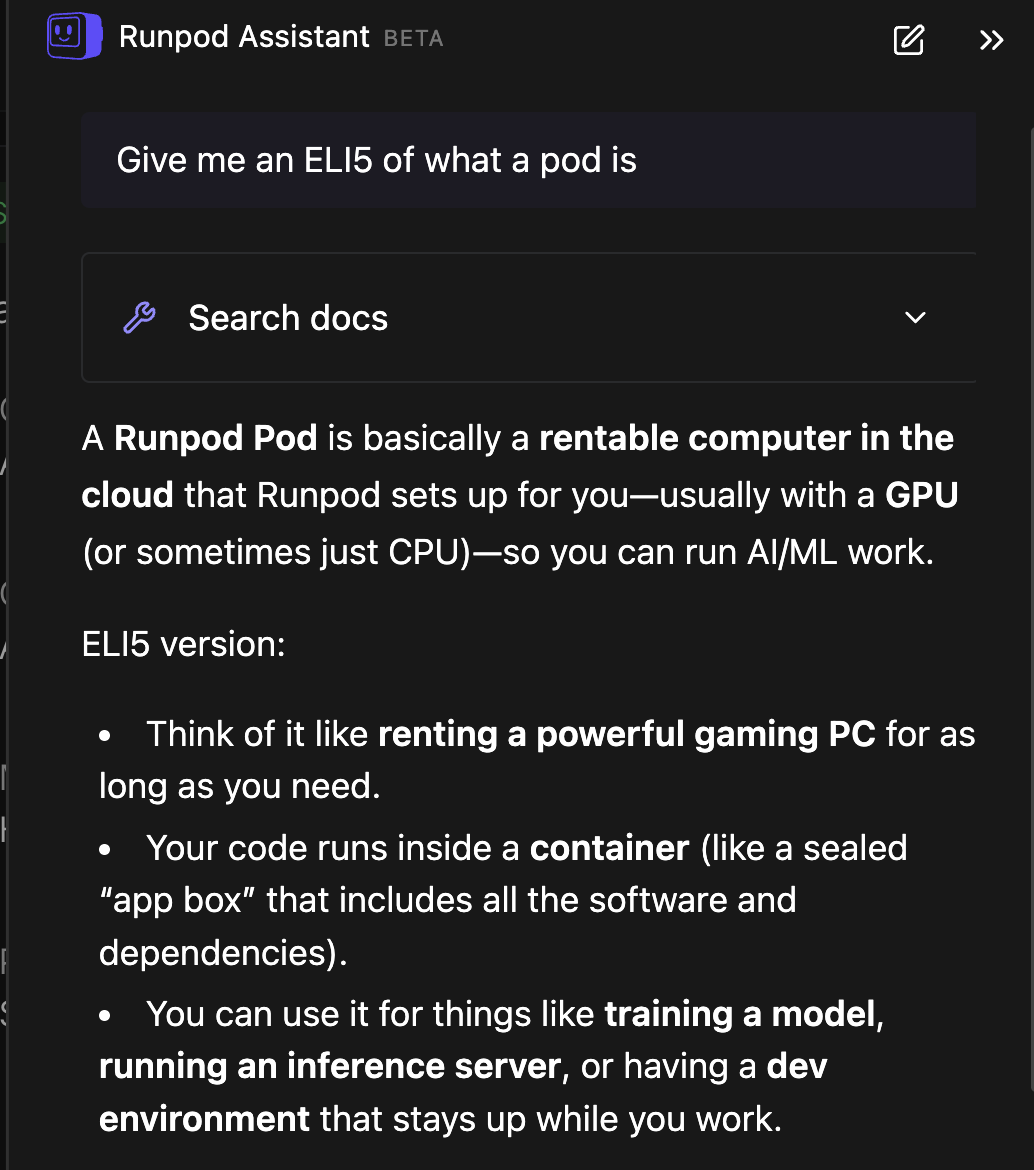
When you open the Assistant, it will suggest a few prompts to get started; things like "How do I use persistent storage?" or "Create a template." But you can ask it anything the way you'd ask any LLM. For example, asking for an ELI5 of what a Pod is will get you a clear, plain-language explanation.
Start and Stop Resources

You can ask the Assistant to start a specific Pod by ID, and it will look it up and start it for you. Because there's a cost involved, it will always ask you to approve the action before executing. The same goes for Serverless Endpoints: you can say something like "update active workers for my serverless endpoint to three," and it will find the endpoint, show you what it's about to do, and wait for your confirmation.

Batch Operations

This is where things get really powerful. Instead of managing resources one at a time, you can issue broader commands like: "Stop all costs for Serverless Endpoints and Pods. Reduce active workers to zero and stop any running pods."

The Assistant will give you a summary of everything it's about to do, ask you to confirm, and then execute the operations across multiple Endpoints and Pods simultaneously. You're not limited to feeding it specific IDs. You can just say "stop all Pods" and it will figure out what's running, give you a status report, and let you shut everything down in one fell swoop.

Get GPU Recommendations

The Assistant can help you think through GPU selection for your workload. Ask it something like "I want to run Llama 3.5 9B. What's the best GPU?" and it'll come back with a plan: such as an A40 as a solid all-around pick, a 4090 if you want the cheapest option that works (24 GB is enough), or an A100 if you want maximum throughput. It'll also give you quick rules of thumb, like 24 GB of VRAM for single-user workloads and 80 GB for high concurrency.

Check Data Center Availability

Once you've decided on a GPU, you can ask "Which data centers have high availability for A100 PCIe?" and get your answer immediately. This is actually much faster than doing it through the UI, where you'd need to go to the deploy screen and click through individual data centers one by one to check availability.

When to Use the Assistant vs. the API

The Assistant and the API complement each other. For tasks that need specific and exact parameters like programmatic integrations, automated pipelines, precise configurations, the API is the better choice. But for more generalized queries, exploration, and quick management tasks, the Assistant has your back. Some things are just more naturally expressed in plain language than through API calls.

Try It Out

The Runpod Assistant is free to use and available now. Just click the chat icon in the upper right corner of your console to get started. We've only scratched the surface of what the Assistant can do, so experiment with it and see what works for your workflow.

Have ideas for useful prompts or features? We'd love to hear about them;drop by our Discord and let us know.

Newly  Features

We've cooked up a bunch of improvements designed to reduce friction and make the.

Create ->
Newly  Features

We've cooked up a bunch of improvements designed to reduce friction and make the.

Create ->
Newly  Features

We've cooked up a bunch of improvements designed to reduce friction and make the.

Create ->
Newly  Features

We've cooked up a bunch of improvements designed to reduce friction and make the.

Create ->
Runpod × OpenAI: Parameter Golf challenge is live
You've unlocked a referral bonus! Sign up today and you'll get a random credit bonus between $5 and $500
You've unlocked a referral bonus!
Claim Your Bonus
Claim Bonus
Blog

Introducing the Runpod Assistant: Manage Your Cloud GPU Resources with Natural Language

We've just released a new tool to get you help faster and streamline your account management.

Author
Brendan McKeag
Date
March 31, 2026
Table of contents
Share
Introducing the Runpod Assistant: Manage Your Cloud GPU Resources with Natural Language

We're excited to announce the launch of the Runpod Assistant: a free, built-in chatbot that lets you manage your pods, endpoints, and infrastructure using plain English. Whether you need to spin up a pod, check GPU availability across data centers, or shut everything down at once, the Assistant puts those actions a conversation away.

What Is the Runpod Assistant?

The Runpod Assistant is a chatbot available at any time from the upper right corner of the Runpod console. It's knowledgeable about the Runpod ecosystem and AI more generally, and it offers functionality comparable to our REST API, but through natural language instead of code.

Think of it as a conversational interface to your Runpod account. You can ask it questions, give it commands, or use it as a sounding board when you're trying to figure out the right GPU for a workload.

What Can It Do?

Here are some things you can do with the Assistant right out of the box:

  • Start and stop Pods and Endpoints — reference them by ID, or just say "stop all running Pods" and the Assistant will figure out the rest.
  • Update Serverless Endpoint configuration — for example, scale active workers up or down.
  • Check GPU availability — ask which data centers have high availability for a specific GPU like the A100 PCIe, and get an instant answer instead of clicking through DCs one by one.
  • Create network volumes and other resources.
  • Search the Runpod knowledge base — get quick answers about persistent storage, network volumes, templates, and more.
  • Get general AI guidance — ask it things like "What's the best GPU to run Llama 3.5 9B?" and it'll walk you through your options.

A Walkthrough: See It in Action

Ask It Anything

When you open the Assistant, it will suggest a few prompts to get started; things like "How do I use persistent storage?" or "Create a template." But you can ask it anything the way you'd ask any LLM. For example, asking for an ELI5 of what a Pod is will get you a clear, plain-language explanation.

Start and Stop Resources

You can ask the Assistant to start a specific Pod by ID, and it will look it up and start it for you. Because there's a cost involved, it will always ask you to approve the action before executing. The same goes for Serverless Endpoints: you can say something like "update active workers for my serverless endpoint to three," and it will find the endpoint, show you what it's about to do, and wait for your confirmation.

Batch Operations

This is where things get really powerful. Instead of managing resources one at a time, you can issue broader commands like: "Stop all costs for Serverless Endpoints and Pods. Reduce active workers to zero and stop any running pods."

The Assistant will give you a summary of everything it's about to do, ask you to confirm, and then execute the operations across multiple Endpoints and Pods simultaneously. You're not limited to feeding it specific IDs. You can just say "stop all Pods" and it will figure out what's running, give you a status report, and let you shut everything down in one fell swoop.

Get GPU Recommendations

The Assistant can help you think through GPU selection for your workload. Ask it something like "I want to run Llama 3.5 9B. What's the best GPU?" and it'll come back with a plan: such as an A40 as a solid all-around pick, a 4090 if you want the cheapest option that works (24 GB is enough), or an A100 if you want maximum throughput. It'll also give you quick rules of thumb, like 24 GB of VRAM for single-user workloads and 80 GB for high concurrency.

Check Data Center Availability

Once you've decided on a GPU, you can ask "Which data centers have high availability for A100 PCIe?" and get your answer immediately. This is actually much faster than doing it through the UI, where you'd need to go to the deploy screen and click through individual data centers one by one to check availability.

When to Use the Assistant vs. the API

The Assistant and the API complement each other. For tasks that need specific and exact parameters like programmatic integrations, automated pipelines, precise configurations, the API is the better choice. But for more generalized queries, exploration, and quick management tasks, the Assistant has your back. Some things are just more naturally expressed in plain language than through API calls.

Try It Out

The Runpod Assistant is free to use and available now. Just click the chat icon in the upper right corner of your console to get started. We've only scratched the surface of what the Assistant can do, so experiment with it and see what works for your workflow.

Have ideas for useful prompts or features? We'd love to hear about them;drop by our Discord and let us know.

Build what’s next.

The most cost-effective platform for building, training, and scaling machine learning models—ready when you are.

You’ve unlocked a
referral bonus!

Sign up today and you’ll get a random credit bonus between $5 and $500 when you spend your first $10 on Runpod.