
Which GPU should you actually use for embedding workloads?
Selecting the right serving engine for your embedding model can dramatically outperform hardware upgrades, yielding up to an 11x throughput increase on the same GPU.
All
 Skip to main content
Blog
Learn when to use open source vs. closed source LLMs, and how to deploy models like Llama 3 or Qwen3 with vLLM on Runpod Serverless for high-throughput inference.


In this blog you'll learn:
If you're not familiar, vLLM is a fast LLM inference engine built around PagedAttention, a memory-management technique that lets it serve far more requests per GPU than naive implementations. If you'd like to learn more about how vLLM works, check out our blog on vLLM and PagedAttention.
When deciding between a closed source LLM like OpenAI's API and an open source LLM like Meta's Llama or Alibaba's Qwen, it's crucial to consider cost efficiency, performance, and data security. Closed models are convenient and powerful, but open source LLMs offer tailored performance, cost savings, and enhanced data privacy.
Open source models can be fine-tuned for specific applications, ensuring accuracy on niche tasks. While the initial setup costs might be higher, ongoing expenses can be lower than standard APIs, especially for high-volume use cases. These models also provide greater control over data, which is essential for sensitive information, and offer scalability and adaptability to meet evolving needs. Here's a table to help you understand the differences better:
Now that we've established why open source LLMs could be the right fit for your use case, let's explore a popular open source LLM inference engine that will help run your LLM much faster and cheaper.
vLLM is a fast LLM inference engine that lets you run open source models at significantly higher throughput than naive serving setups.
vLLM achieves this performance using a memory allocation algorithm called PagedAttention. For a deeper understanding of how PagedAttention works, check out our blog on vLLM.
Here are the key reasons why you should use vLLM:
Now let's dive into how you can start running vLLM in a few minutes.
The vLLM worker supports most models available on Hugging Face, including:
Depending on the model you choose, you may need to configure your endpoint with additional environment variables (see below) - for example, to set a quantization type if you're using a quantized checkpoint like AWQ or GPTQ.
1. Go to the vLLM worker page in the Runpod Hub.
2. Click Deploy, and use the latest available vLLM worker version.
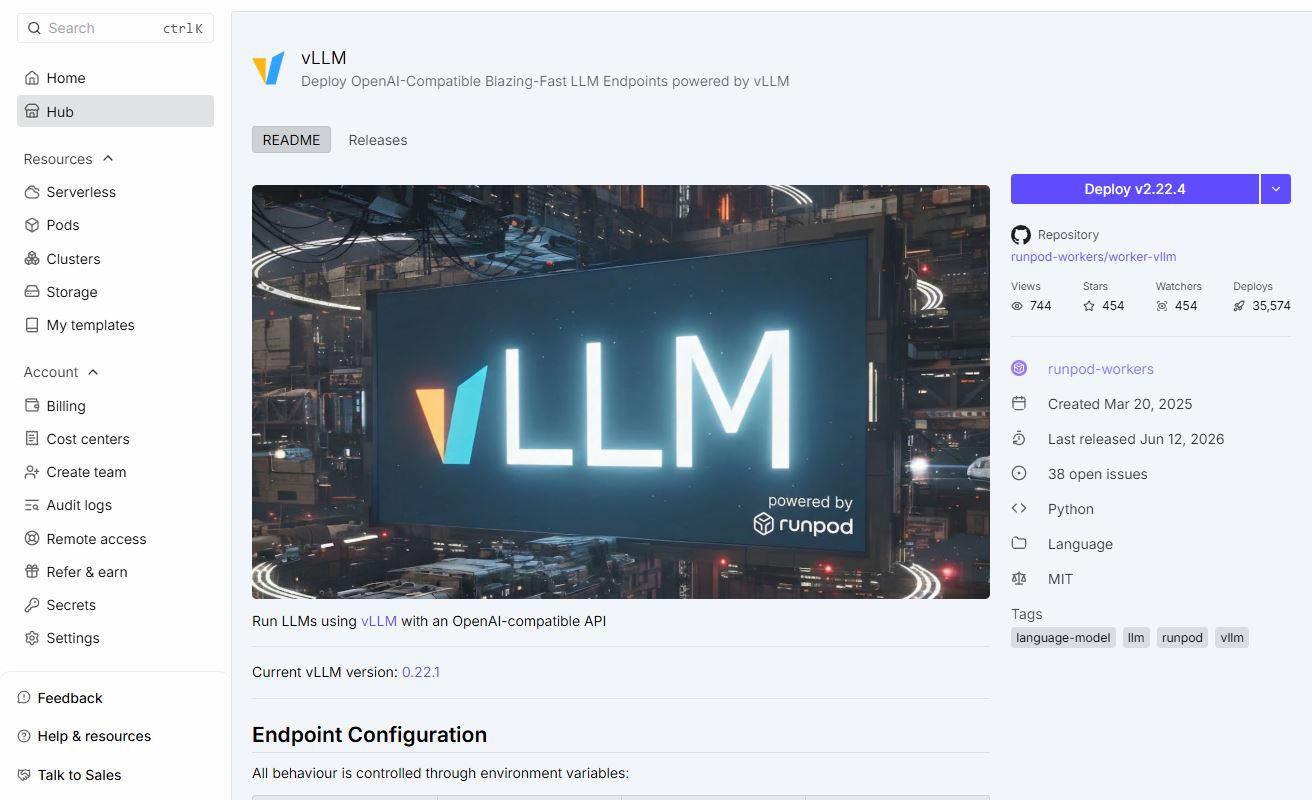
3. In the Model field, enter your chosen Hugging Face model name (e.g., meta-llama/Llama-3.1-8B-Instruct).
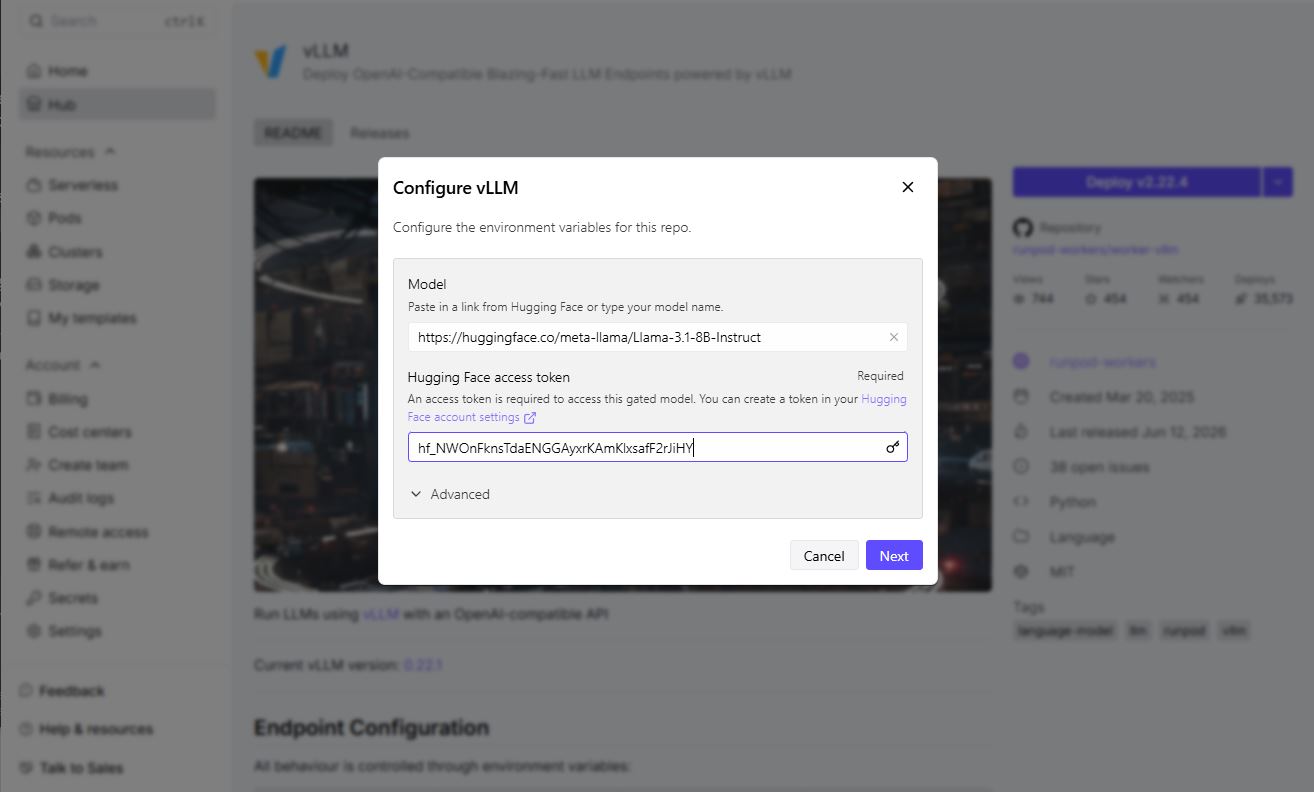
4. Enter your access token.
5. Click Advanced to expand the vLLM settings, and set Max Model Length to an appropriate context length for your model (e.g., 8192).
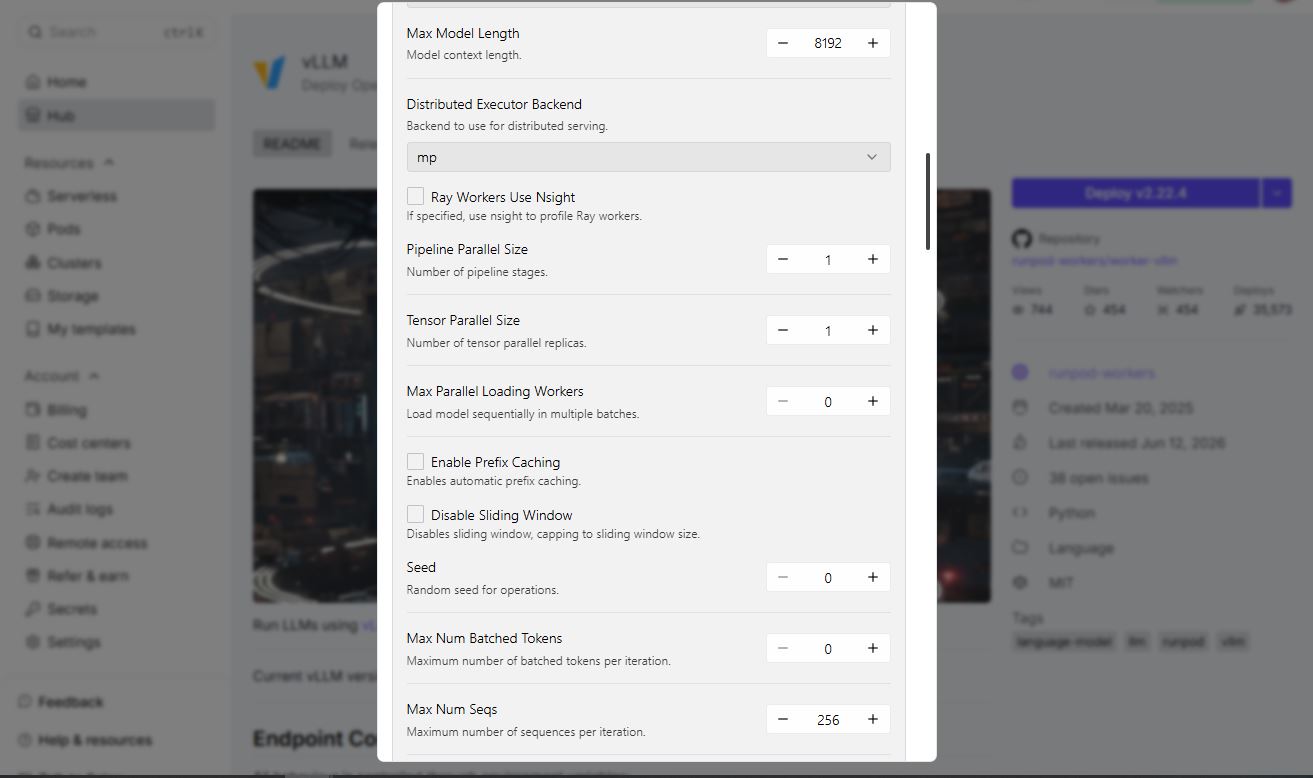
6. Leave other settings at their defaults unless you have specific requirements.
7. Click Create Endpoint.
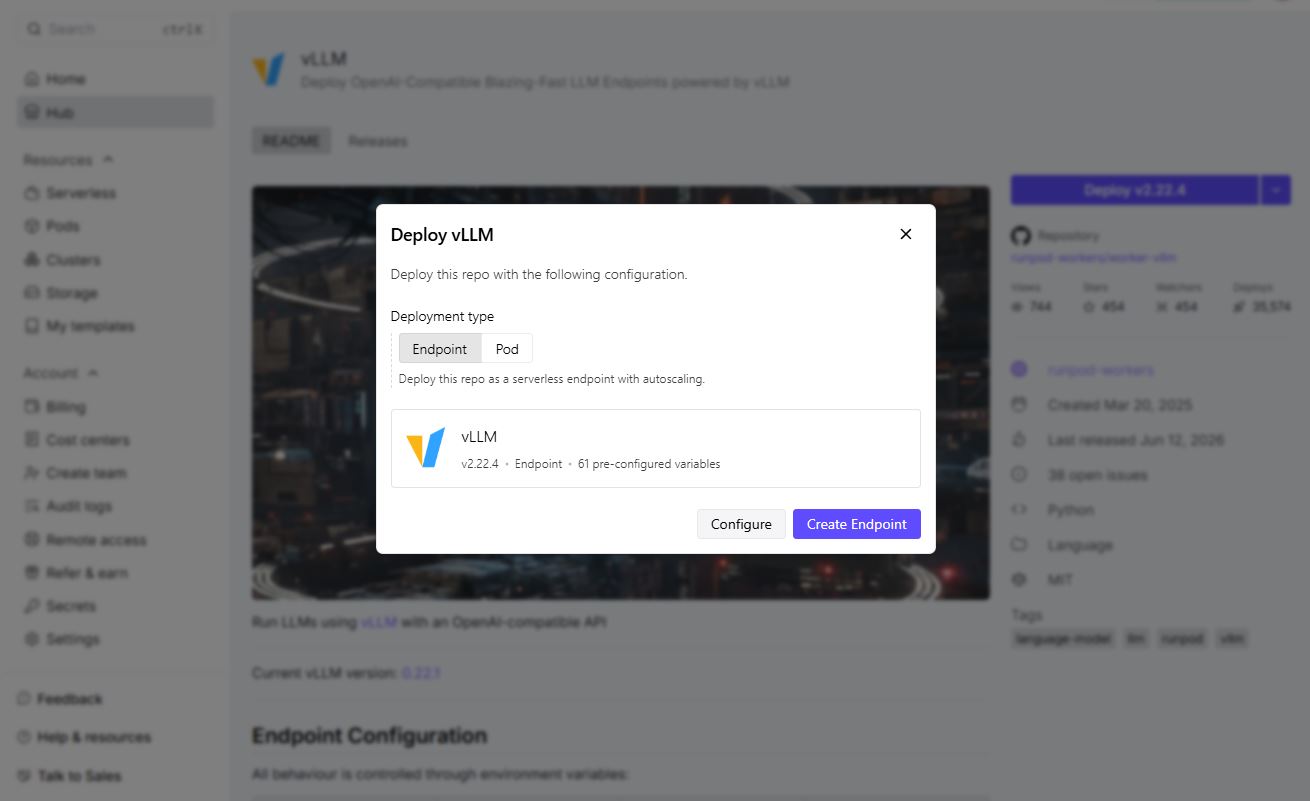
8. Add Runpod credits, if prompted.
Your endpoint will now begin initializing. This may take a few minutes while Runpod provisions resources and downloads the selected model.
Once deployment is complete, note your Endpoint ID from the endpoint detail page. You'll need this to make API requests.
On the endpoint detail page, click the Requests tab. You'll see a default test request:
Click Run. The first request will take longer than usual while the worker downloads and loads the model.
You now have a powerful, scalable LLM inference API that's compatible with both Runpod's native API and the OpenAI client.
The vLLM worker is fully OpenAI-compatible, and as of recent worker versions also supports the OpenAI Responses API and the Anthropic Messages API, so you can point existing OpenAI or Anthropic SDK code at your endpoint with minimal changes.
Only the api_key and base_url need to change from a standard OpenAI integration. The rest of your code stays the same.
This makes it straightforward to swap a vLLM-on-Runpod endpoint into a project originally built against either OpenAI's or Anthropic's API.
You can customize your deployment by setting environment variables on your endpoint. Some of the most commonly used:
Beyond this list, the worker auto-discovers any environment variable that matches a vLLM engine argument (uppercased), so you can pass most vLLM options directly without waiting on explicit worker support. To add these, go to your endpoint's Manage → Edit Endpoint → Public Environment Variables.
When sending a request to your LLM for the first time, your endpoint needs to download the model and load the weights. If the output status remains "in queue" for more than 5-10 minutes:
Open source LLMs let you fine-tune for specific applications, reduce inference costs at scale, and keep control over your data. To run your open source LLM, we recommend vLLM - an inference engine that's compatible with thousands of models and is built for high-throughput serving, now with OpenAI- and Anthropic-compatible API support built in.
Hopefully by now you have a stronger grasp of when to use closed source vs. open source models, and how to deploy your own open source model with vLLM on Runpod Serverless.
Deploy vLLM on Runpod Serverless
vLLM supports most causal language models on Hugging Face, including Llama 3, Mistral, Qwen3, Gemma, Phi-4, and DeepSeek-R1 distillations. When choosing a model, match its size to your available GPU VRAM and set MAX_MODEL_LEN to the context length you actually need (larger context windows use more memory). See vLLM's supported models list for the full set.
On Runpod, enter the model's Hugging Face repo name (e.g., meta-llama/Llama-3.1-8B-Instruct) in the Model field when deploying from the Hub. If the model is gated, supply your Hugging Face access token as the HF_TOKEN environment variable. The worker downloads and loads the model automatically on first request.
A few of the most effective levers: raise GPU_MEMORY_UTILIZATION to give vLLM more room for the KV cache, use TENSOR_PARALLEL_SIZE to split larger models across multiple GPUs, and pick a GPU with enough VRAM for your model and context length to avoid memory pressure. For current, measured numbers across configurations, check vLLM's performance dashboard rather than relying on a fixed benchmark figure.
Quantization formats like AWQ, GPTQ, and bitsandbytes (set via the QUANTIZATION environment variable) reduce the memory footprint of model weights. This lets you fit larger models on smaller GPUs or run bigger batches, generally trading a small amount of accuracy for lower VRAM use and often faster inference. Actual gains vary by model and hardware, so it's worth testing your specific case.
Set MAX_MODEL_LEN to what your application actually needs rather than the model's maximum context (which increases memory use unnecessarily), pin a specific worker image version instead of "latest" for reproducibility, pass HF_TOKEN as a secret environment variable for gated models, and monitor worker logs to catch out-of-memory errors or slow cold starts early.
Blog Posts