Avoid Errors by Selecting the Proper Resources for Your Pod
Common errors when spinning up pods often stem from insufficient container space or RAM/VRAM. This post explains how to identify and fix both issues by.
Runpod instances are billed at a rate commensurate with the resources given to them. Naturally, an A100 requires more infrastructure to power and support it than, say, an RTX 3070, which explains why the H200 or B200 is at a premium in comparison. While the speed of training and using models is often just a matter of how many cycles you can throw at them, the amount of RAM, VRAM, and disk space is also a consideration whether the applications get off the ground at all. Here's two common error types that you might run into when attempting to download or install packages into a pod if they aren't given the resources to support them.
1.) Insufficient Container Space
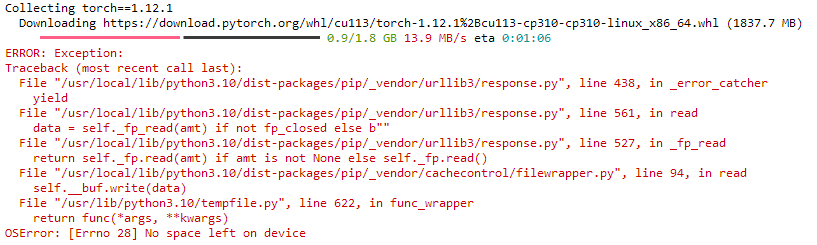
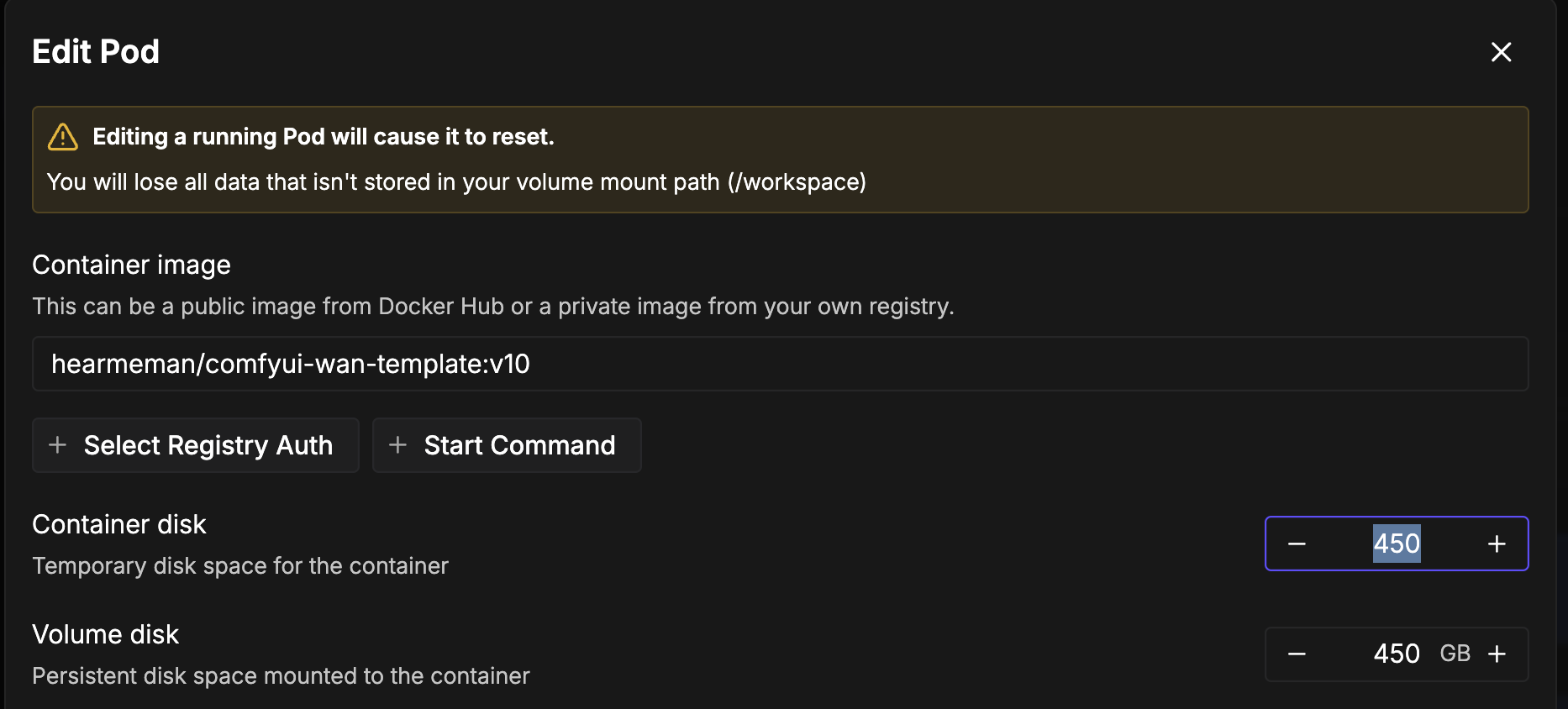
By default, Runpod instances have a 5GB container space allocated to them. This space is where the root file system is held, and any packages you download will use this space to live in. This space should be more than sufficient to hold the basic operating system and pod base and to play around with. However, here's an example of an error you might find when installing a package:
ERROR: Exception: Traceback (most recent call last): File "/usr/local/lib/python3.10/dist-packages/pip/_vendor/urllib3/response.py", line 438, in _error_catcher yield File "/usr/local/lib/python3.10/dist-packages/pip/_vendor/urllib3/response.py", line 561, in read data = self._fp_read(amt) if not fp_closed else b"" File "/usr/local/lib/python3.10/dist-packages/pip/_vendor/urllib3/response.py", line 527, in _fp_read return self._fp.read(amt) if amt is not None else self._fp.read() File "/usr/local/lib/python3.10/dist-packages/pip/_vendor/cachecontrol/filewrapper.py", line 94, in read self.__buf.write(data) File "/usr/lib/python3.10/tempfile.py", line 622, in func_wrapper return func(*args, **kwargs) OSError: [Errno 28] No space left on device
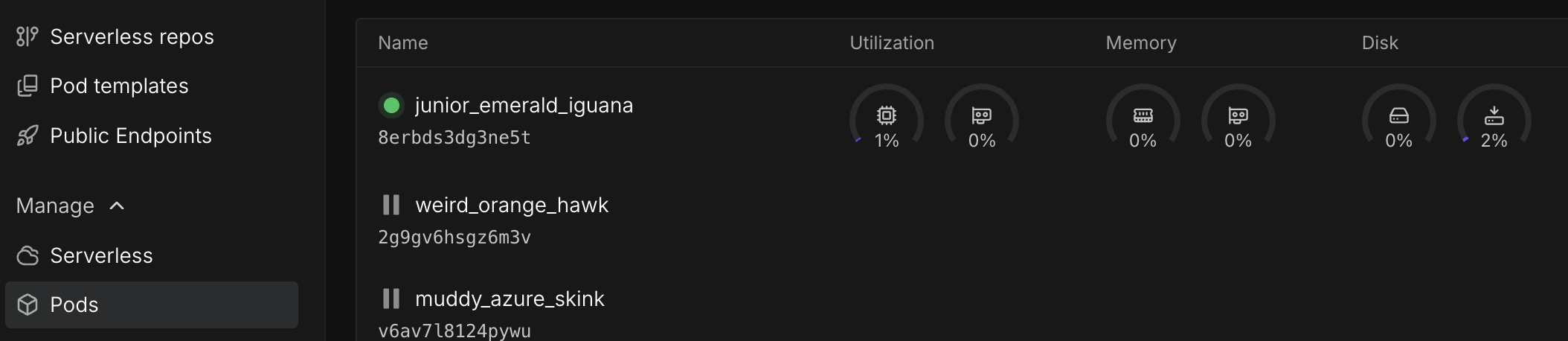
You can also review the My Pod information screen to review your container utilization, which can also be a good indicator if you need to boost your volume size. It will be very low on a fresh pod, but can fill up quickly if additional packages are installed.
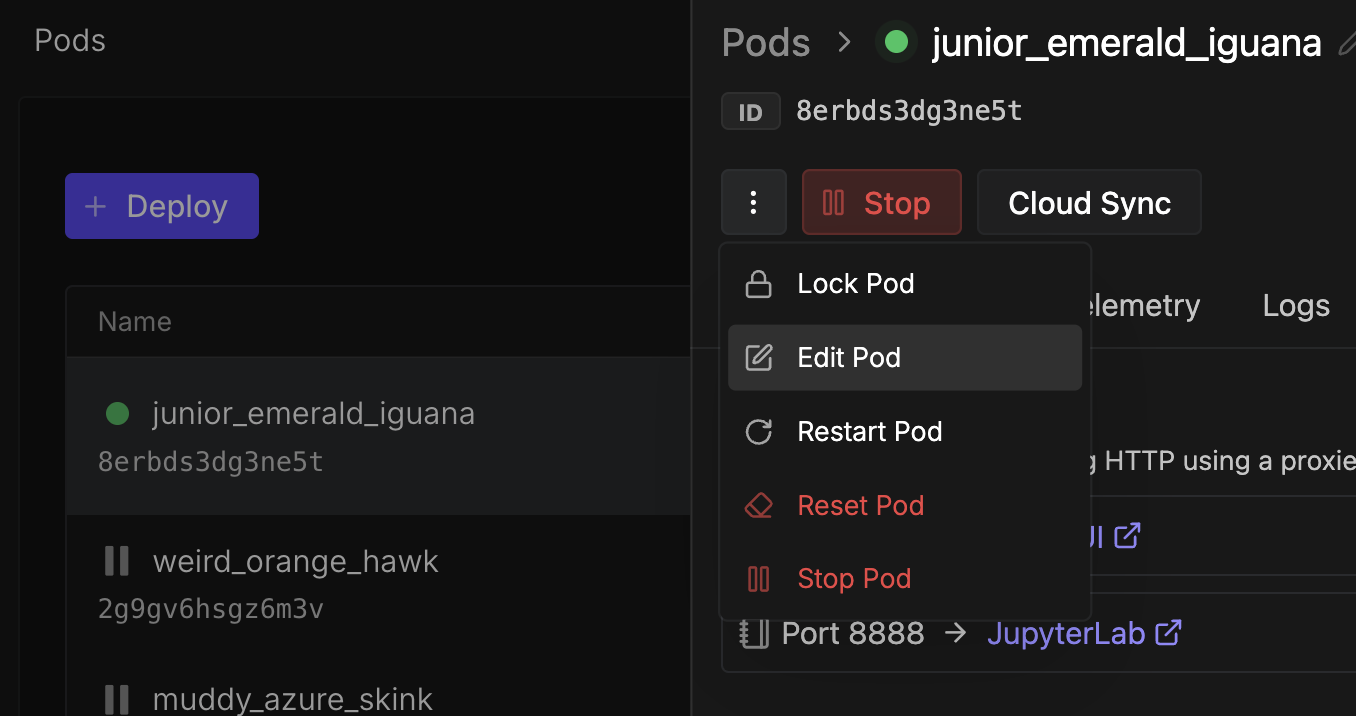
Fixing this one isn't too bad. It's just a matter of going to your pod list, pulling down the pod you're working and clicking Edit Pod. Be aware, though, that changing the parameters will force a reset of your pod, so ensure that anything you want to save is in your /workspace folder. Once the pod restarts, you should be good to go.
2.) Insufficient RAM/VRAM
Depending on what you are asking a model to do, you may run into errors like the following with deployments with cards with lower-end GPUs. These will appear when you're doing something computational rather than attempting to download or install packages.
RuntimeError: CUDA error: out of memory
Out of Memory: Killed process [pid] [name].
Something like a CUDA error is going to be linked to a lack of VRAM, while processes getting killed to system RAM.
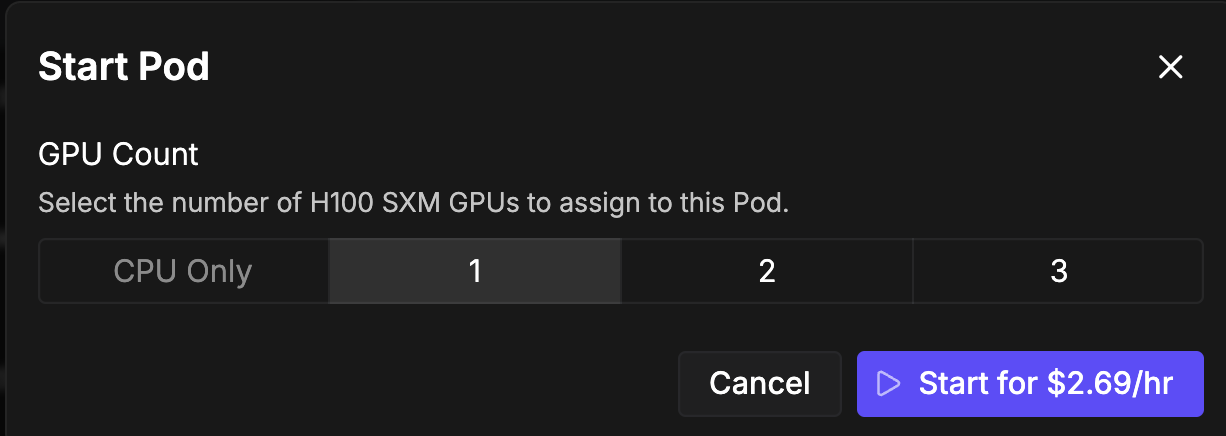
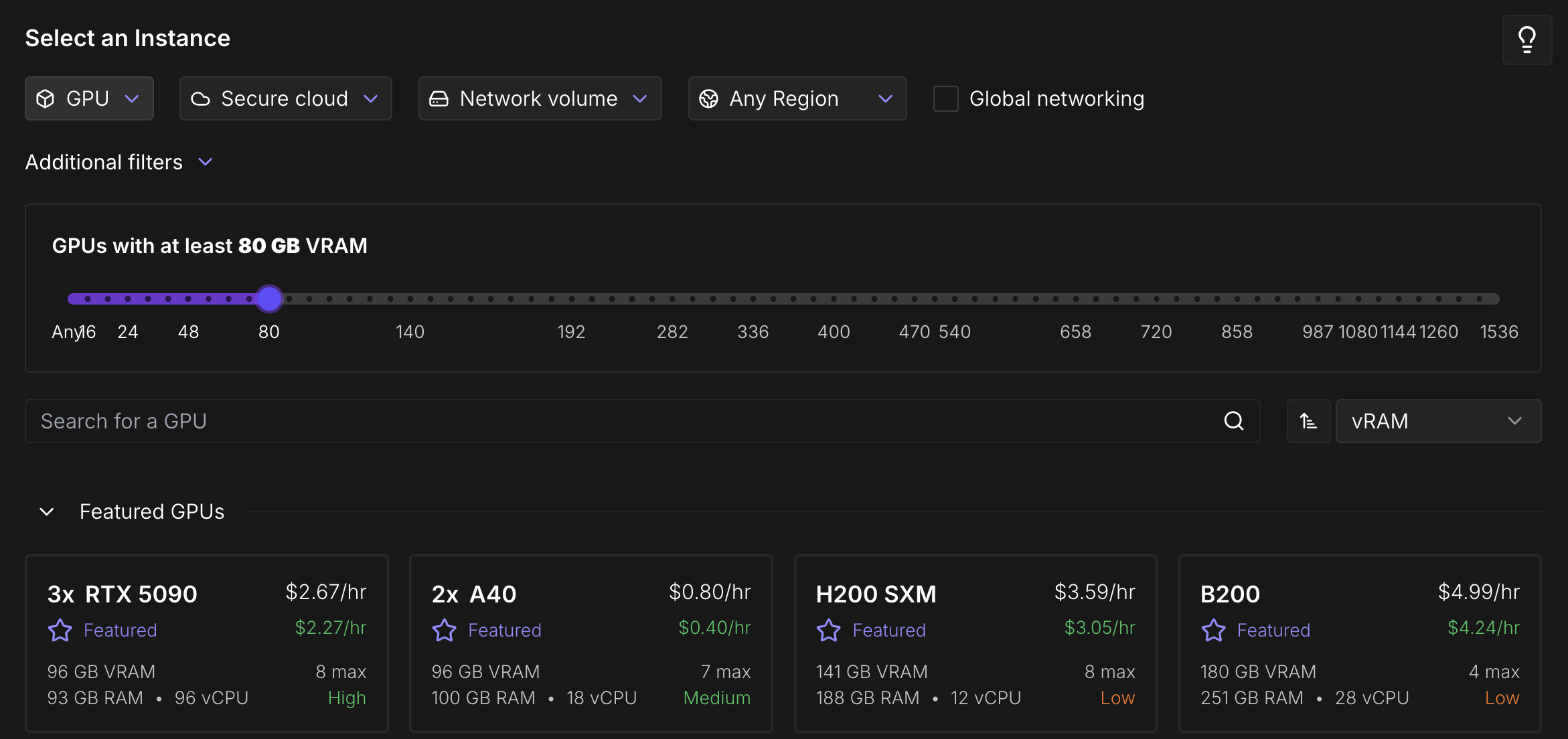
An error like this may halt your entire workflow, and may require you to tweak or lower your expectations for how much you are asking the card to do. Unfortunately, there's no quick fix for this as pods are tied to the GPU configuration you select when you create them and cannot be altered. You'll need to recreate the pod with a different GPU configuration from the list, along with porting over any configuration changes you have made since then. GPUs with more VRAM are generally not appreciably more expensive (e.g. a 3080 with 12GB of VRAM is going to be priced about the same as an A4500 with 20GB) so if you have any doubts as to whether you might need the extra RAM space, you'll probably want to err on the side of caution and select the card with more memory. Alternatively, you can also stop the pod and add additional GPUs if they are available, but be advised that not all applications support using multiple GPUs (ComfyUI not having the ability to split a model over multiple GPUs without custom nodes or configuration is a frequently cited example.)
Running out of memory may throw errors like this:
We will also print messages to the system logs when you are approaching maximum utilization:
In general, transformers-based models require 2GB of memory for every 1 billion parameters they have, if you are loading them at full weights (FP16). You can load quantized versions of those models that use less memory since they do not require as much precision, at the expense of model outputs being lower quality or less precise. If you need to specify a VRAM requirement for your use case, feel free to specify a minimum amount when deploying and you will only be shown GPU specs that meet that criteria.
Hopefully, this helps answer any questions you might have about errors you might receive when spinning up a pod and installing packages. Let us know on the Discord if you have any further questions!
What's new in Runpod Serverless: Faster cold starts, batch inference, and no-Docker deploys
Whether you're already running production endpoints on Runpod or you're sizing us up for the first time, here's a plain-language tour of what Runpod Serverless does today, why it's faster and cheaper than it was six months ago, and how to deploy your first endpoint in minutes.
Beyond the Notebook: The Engineering Realities of Production AI Agents
Shift from stateless inference to stateful architectures to resolve infrastructure bottlenecks like memory management, concurrency limits, and runaway jobs in production AI agents.



.jpeg)