Connect VSCode to Your Runpod Instance (Quick SSH Guide)
Want to code remotely like it’s local? This guide walks you through connecting VSCode to your Runpod instance using SSH for fast, seamless GPU development.
While working in a terminal window is sometimes good enough, it's much nicer to work within your IDE if you are doing interactive development. Fortunately, you can connect your VSCode IDE to your Runpod instance via SSH. This will allow you to edit files and code on your remote instance directly from VSCode.
Pre-requisites:
1) A generated SSH key pair that you've configured in your settings (see this blog post)
2) A running Runpod instance with exposed TCP connection (You have to deploy the pod after you set up your SSH key!)
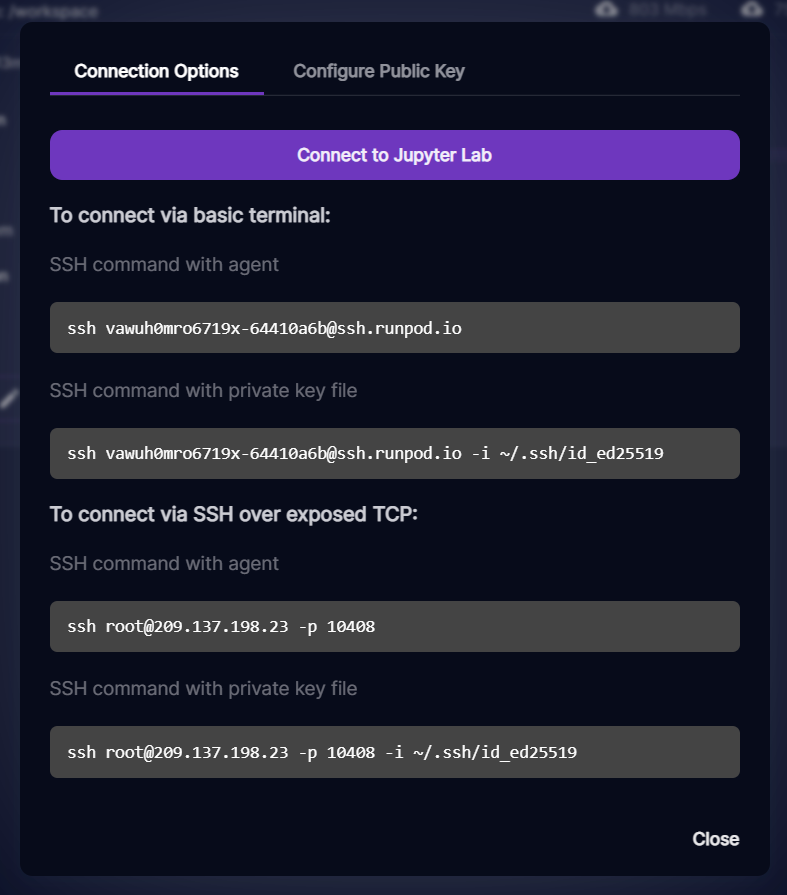
To keep this blog post short, I am going to assume that you already have done the pre-requisites 1 and 2. To make sure that this was done correctly, open your pod dashboard and click on the "Connect" button.
You should see the "To connect via SSH over exposed TCP" section (Make sure that you see a number IP and NOT something like blah@ssh.runpod.io !). Go ahead and run the last SSH command in a terminal window to confirm that you are able to connect via SSH. Make sure that the path after "-i" points to the path where you saved/generated your public key.
If you are able to SSH to your instance with this, then you have met the pre-reqs and should be able to connect via VSCode in a few short steps! If not, then check your key pair for extra spaces and irregularities. If it's asking for a password, this is generally a problem with your key pair.
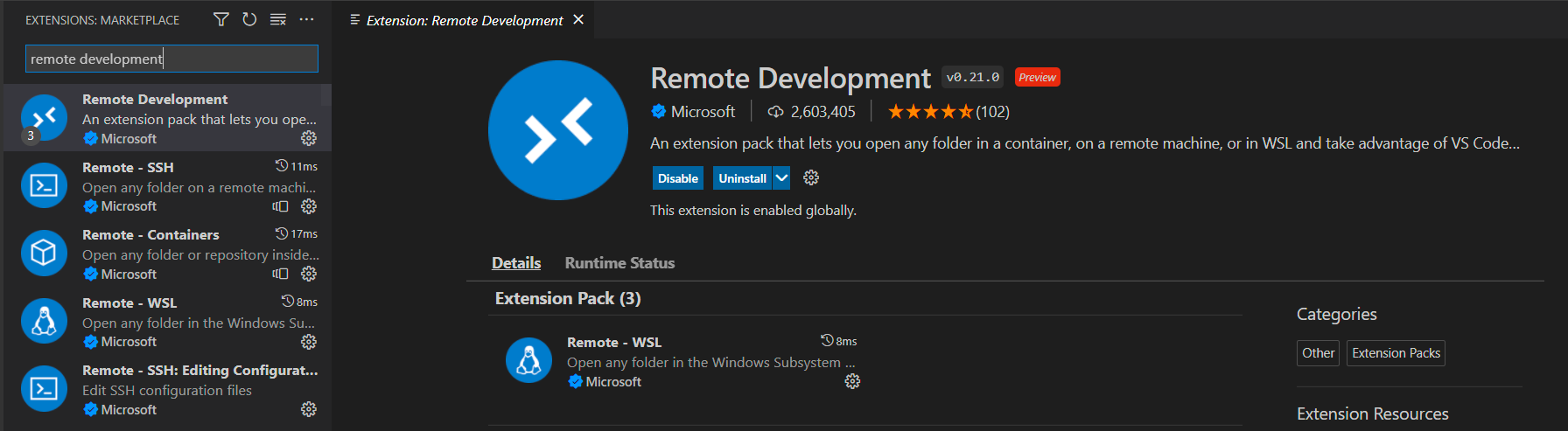
First, open VSCode and make sure you have the following extension installed:
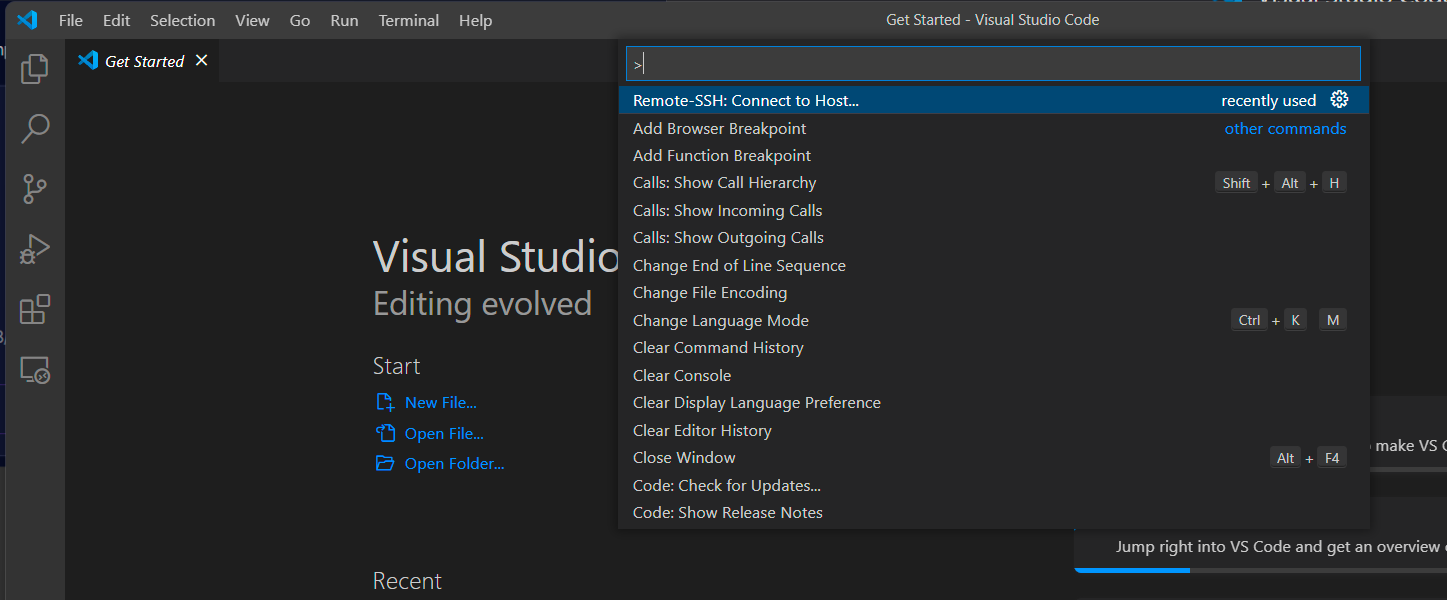
Once you've installed this extension, you should be able to open the command palette by hitting "ctrl+shift+p". You should be able to then choose the "Remote-SSH: Connect to Host..." option.
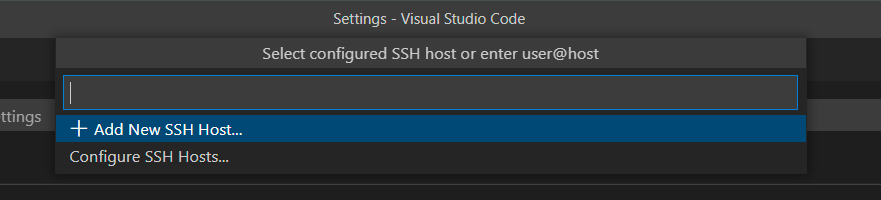
This should present you with some new options. Choose "Add new SSH Host".
This should bring up a new prompt for you to put in an SSH command. Put in the SSH command that you confirmed works earlier and then hit enter.
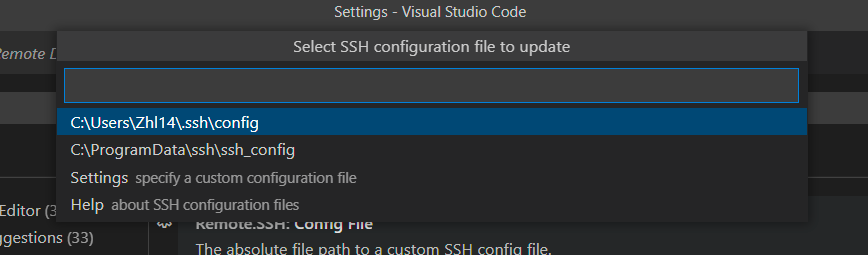
It will prompt you to choose a SSH configuration file. You can choose whichever you want. Choosing the default is safe if you don't know what this is.
Now that your host is added, go back to the command palette menu "ctrl+shift+p" and choose the "Remote-SSH: Connect to Host..." option again. This time, you should have a host in your options:
Go ahead and select it and it should connect to your pod.
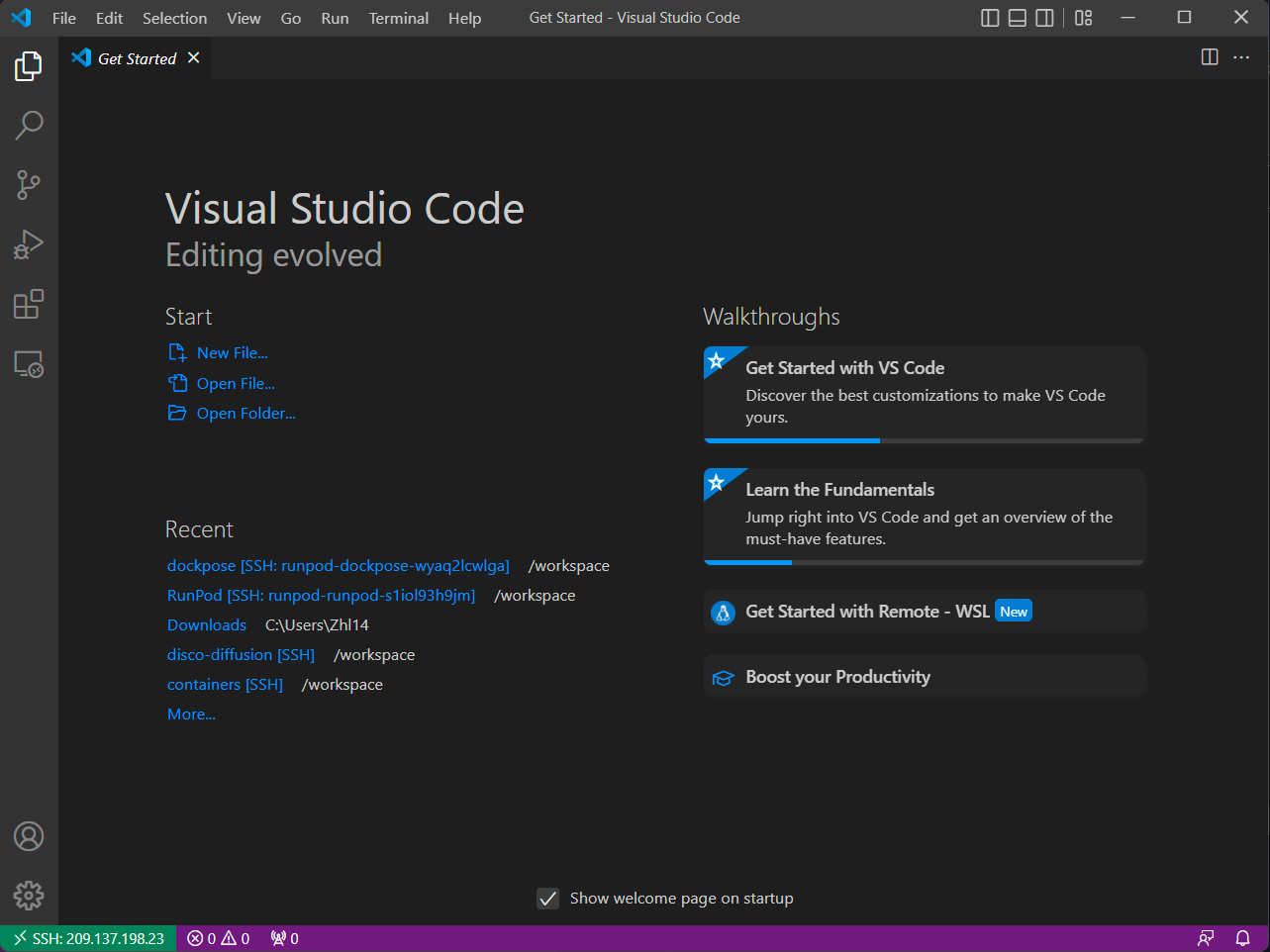
You can verify that you are connected by looking for the IP address in green in the bottom left corner. You can now develop remotely in your IDE! Enjoy!
What's new in Runpod Serverless: Faster cold starts, batch inference, and no-Docker deploys
Whether you're already running production endpoints on Runpod or you're sizing us up for the first time, here's a plain-language tour of what Runpod Serverless does today, why it's faster and cheaper than it was six months ago, and how to deploy your first endpoint in minutes.
Beyond the Notebook: The Engineering Realities of Production AI Agents
Shift from stateless inference to stateful architectures to resolve infrastructure bottlenecks like memory management, concurrency limits, and runaway jobs in production AI agents.






.jpeg)