Learn how to launch and use the Kohya_ss template on Runpod, from pod setup to desktop login and installing the Kohya_ss GUI using terminal commands.
Introduction: In this post, we will discuss the process of utilizing the Kohya_ss template with Runpod. The Kohya_ss template is designed for desktop CUDA and supports applications like Kohya_ss. We will provide a step-by-step guide to help you get started. It is recommended to use the NVIDIA 3090/4090 GPU for optimal performance with this template.
The template can be accessed via this link: Template
Step 1: Start a Runpod Pod with TCP Connection Support To begin, start a Pod that supports TCP connection. This is crucial for ensuring seamless communication to the desktop environment.
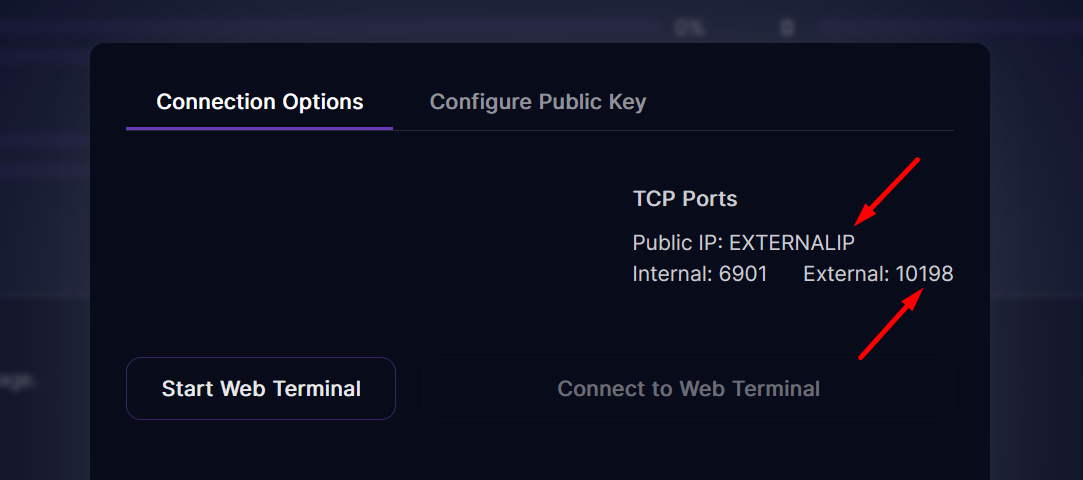
Step 2: Access the Desktop Environment Once the Pod is up and running, copy the public IP address and external port from the connect page.
Public IP and external port
In a new browser tab, enter the following URL:
https://EXTERNALIP:EXTERNALPORT
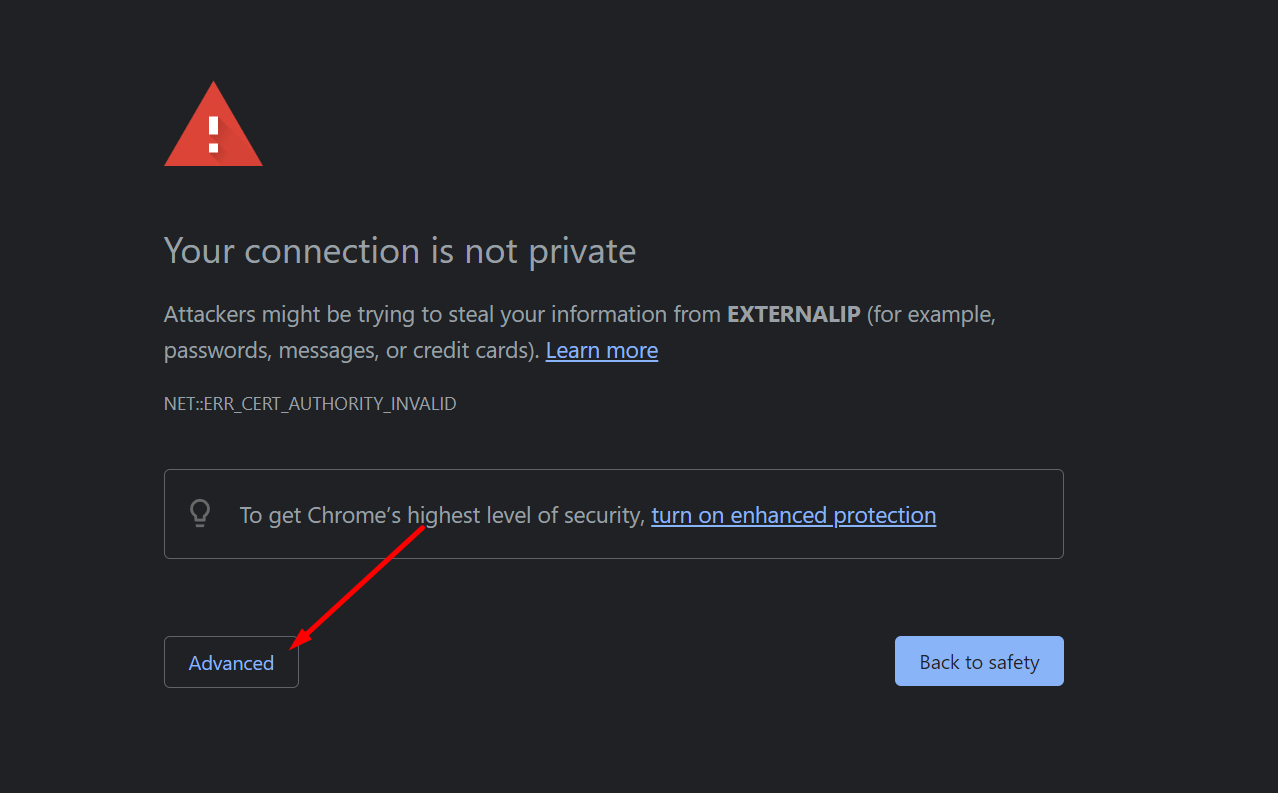
Note: Your browser may warn you about an insecure connection. This is expected, and you can safely ignore it.
Press Advance then proceed
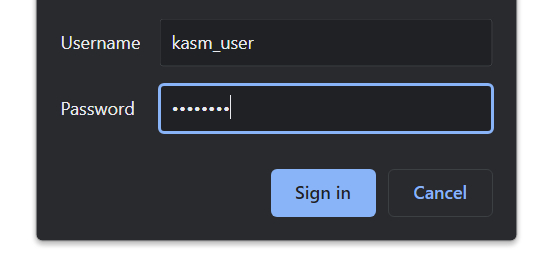
Step 3: Log in to the Desktop Environment Use the following credentials to log in:
Username: kasm_user Password: password
KasmVNC login window
Step 4: Install Kohya_ss To install Kohya_ss, follow these steps:
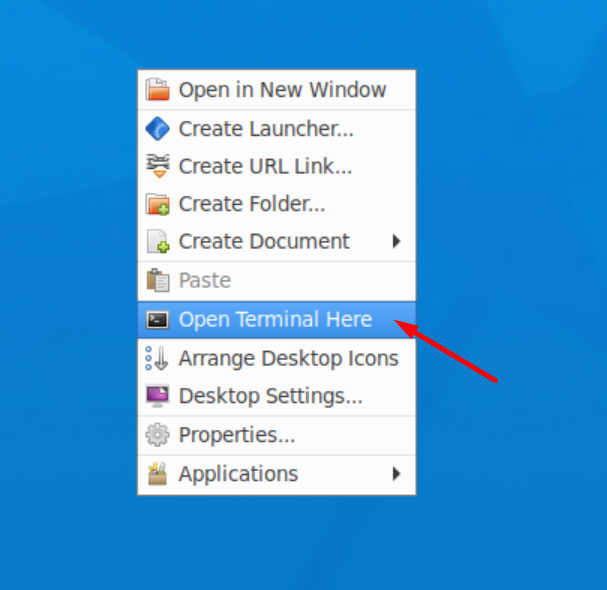
Opening terminal
Right-click on the desktop and open a terminal window. Enter the following commands one by one:
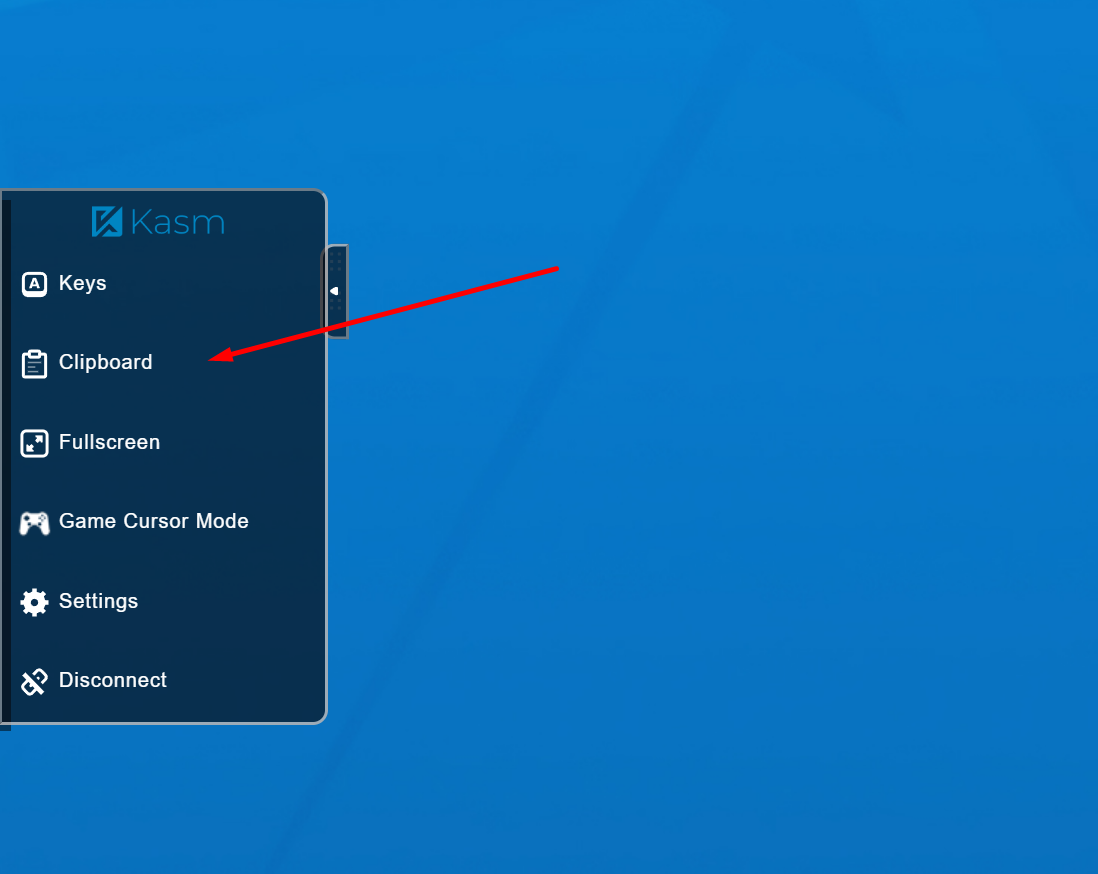
On Firefox you can copy commands using clipboard menu on Chrome it will ask for permissions
These commands will download the Kohya_ss repository, install the necessary packages, and create a run script on the desktop. Note: This might take some time depending on internet connection. If there are some errors let Madiator2011 know on our Discord.
All packages has been installed run with ./kohya_launcher.sh
Step 5: Launch Kohya_ss After the installation is complete, you can run the Kohya_ss user interface with the following command: ./kohya_launcher.sh
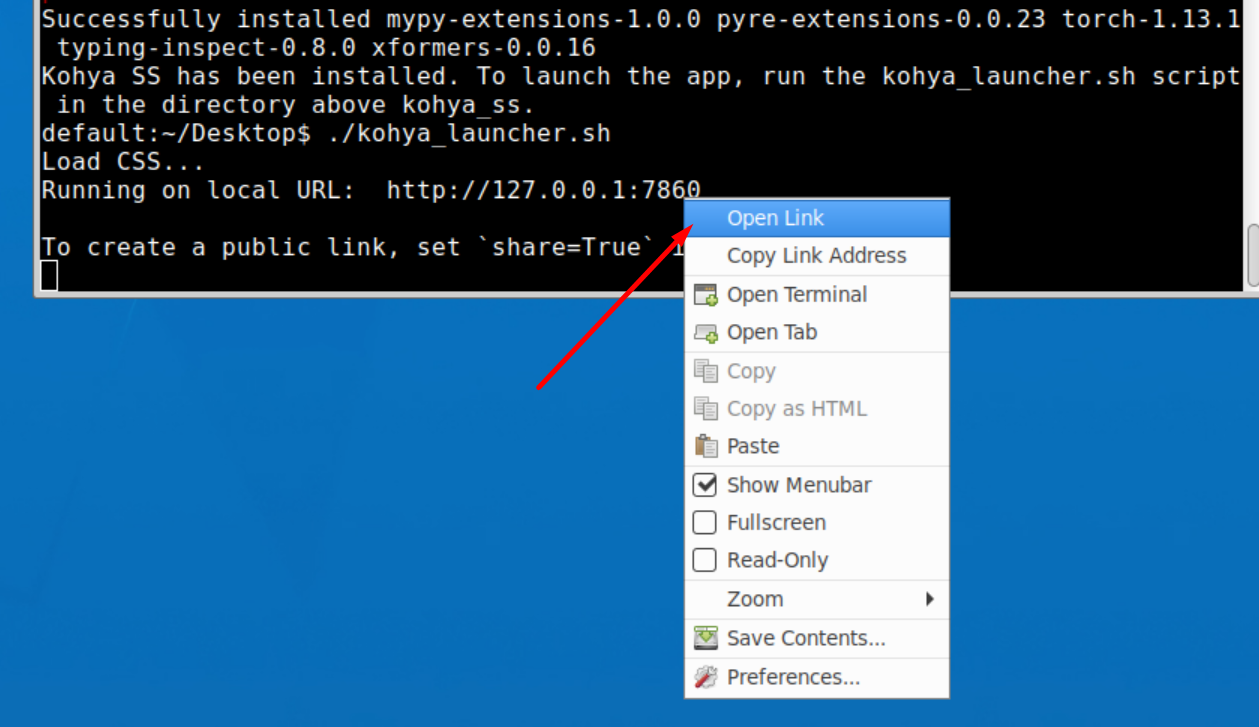
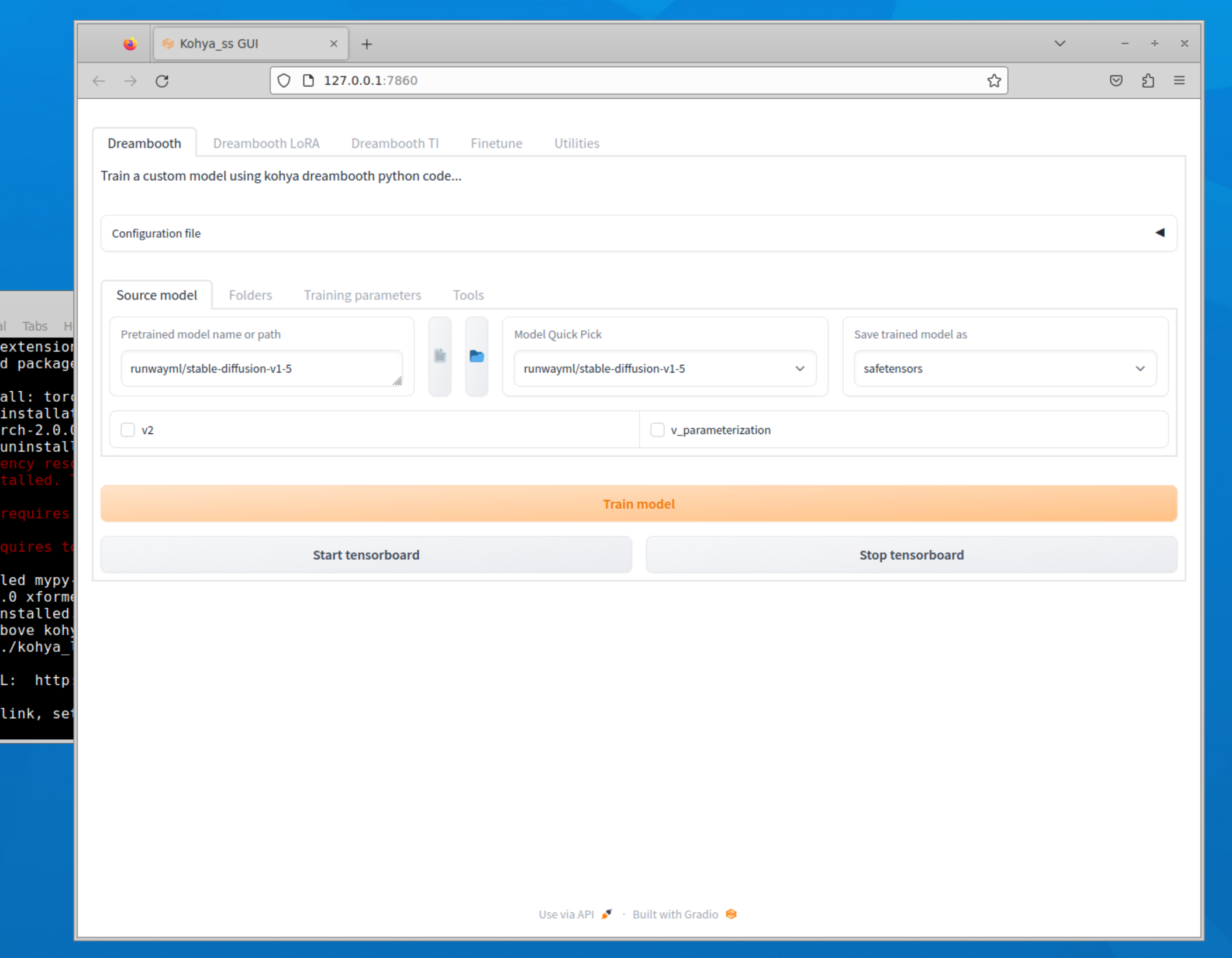
The command will generate a link that you can open in browser inside Kasm to access the Kohya_ss application.
You can rigt click on link to open it in browser inside Kasm Desktop
Congratulation you have installed Kohya_ss GUI :)
Conclusion: In this guide, we have provided a detailed walkthrough on setup of the Kohya_ss template. By following these steps, you can easily set up and run the Kohya_ss application in a Runpod environment. This powerful combination allows you to harness the power of desktop CUDA and enjoy a seamless experience with the Kohya_ss application.
Hopefully, this blog post has given you a better understanding of how to use the Kohya_ss template. If you have any questions or need help, don't hesitate to send message on Runpod's Discord or other communities for support.
What's new in Runpod Serverless: Faster cold starts, batch inference, and no-Docker deploys
Whether you're already running production endpoints on Runpod or you're sizing us up for the first time, here's a plain-language tour of what Runpod Serverless does today, why it's faster and cheaper than it was six months ago, and how to deploy your first endpoint in minutes.
Beyond the Notebook: The Engineering Realities of Production AI Agents
Shift from stateless inference to stateful architectures to resolve infrastructure bottlenecks like memory management, concurrency limits, and runaway jobs in production AI agents.



.jpeg)