New to serverless? This guide shows you how to deploy a basic "Hello World" API on Runpod Serverless using Docker, perfect for beginners testing their.
If you're new to serverless computing and Docker, this guide will walk you through creating your first Runpod serverless endpoint from scratch. We'll build a simple "Hello World" application that demonstrates the basic concepts of serverless deployment on Runpod's platform. You'll learn how to build a Docker image locally, push it to Dockerhub, set up an endpoint on Runpod, and send your first request to it.
Understanding Serverless and Docker: The Basics
Before diving into the technical steps, let's understand what we're building and why. Imagine you're a chef who wants to serve food to customers. In a traditional setup (like a regular server), you'd need to rent a restaurant space full-time, pay for utilities, and maintain the kitchen even when no customers are present. This is like running a traditional server that's always on – essentially our Pod service. And while this is the right solution for some use cases, we believe in offering you multiple options to make the best use of our service.
Serverless computing is more like having a kitchen that magically appears only when customers order food and disappears when they're done eating. You only pay for the actual time spent cooking. Docker containers are like standardized, portable kitchen setups that ensure your recipes work the same way whether you're cooking in New York or Tokyo. We've discussed in the past about how a serverless scaling strategy can help you make the most of your GPU spend.
In this tutorial, we're going to create a simple "kitchen" (Docker container) that knows how to say hello to people, package it up so it can be shared (push to DockerHub), and then set it up on Runpod's serverless platform where it will spring to life whenever someone wants a greeting.
Prerequisites
Before we begin, make sure you have the following installed on your MacOS system:
A text editor of your choice. VSCode is my personal recommendation as it's free and user friendly.
Note that while this tutorial is tuned for MacOS users, the terminal commands should work just fine on most flavors of Linux, or you can look into installing Windows Subsystem for Linux on a Windows install.
You'll also want to be sure Docker Desktop is running to prevent any potential Docker daemon errors.
Step 1: Setting Up Your Project
First, let's create a new directory for our project and set up the necessary files. Run this in the Terminal:
Step 2: Creating the Handler Function
Create a new file called handler.py with this simple "Hello World" handler:
Step 3: Creating the Dockerfile
Create a new file called Dockerfile that will define how to build your container:
Create a requirements.txt file with our dependencies:
Step 4: Building and Testing Locally
Let's build the Docker image and test it locally. Be sure to replace the username with your Dockerhub username, e.g. brendanmckeag/runpod-hello-world:latest.
Note that you must build for linux/amd64 (otherwise you'll run into an 'exec format error' error down the line.)
If running the docker run command to test, you'll get an error:
This is normal. When we run a Runpod serverless worker locally, it looks for a file called test_input.json by default. This file simulates the input that would normally come from actual API requests in production. Since we haven't created this file yet, the worker exits immediately. This error/warning is not worrisome, but seeing it instead of some other response is a good sign that you're on the right track.
Step 5: Pushing to DockerHub
Now that we've built and tested our image, let's push it to DockerHub:
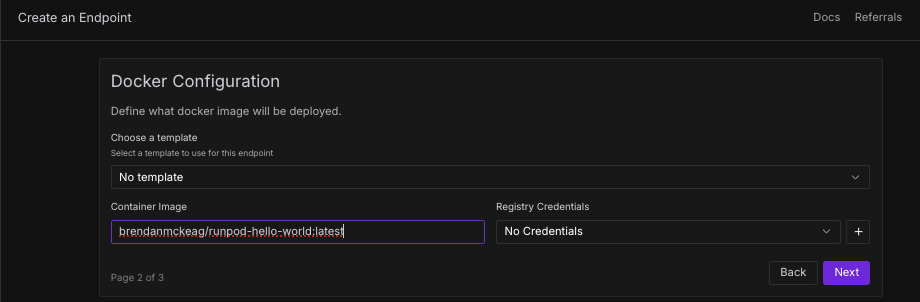
Under Container Image, put in your Docker image path, just substitute your Docker Hub username. I've left the image used in this demonstration up under brendanmckeag if you'd like to test it, otherwise substitute your username instead.
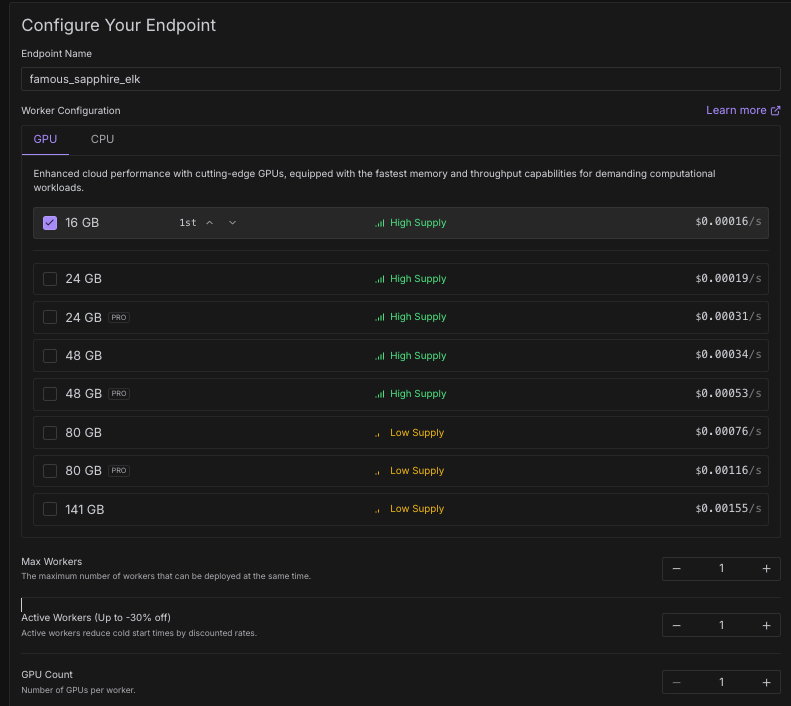
Fill in the following details - since this is a simple example, you don't need a high powered GPU spec example. You could even test this with CPU if you wanted to, but for the purposes of this example we'll select a 16GB spec. Once you're all set, click Create Endpoint at the bottom.
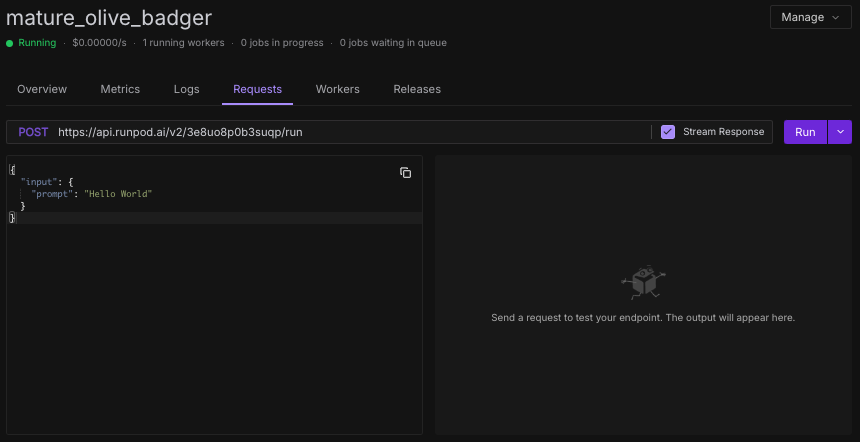
You can test the endpoint by going to your Serverless console and then clicking on the endpoint, and then clicking on Requests. Click on the Streaming checkbox, and then Run.
Note that under the dropdown you will have two options for Run and Runsync, the differences are as follows:
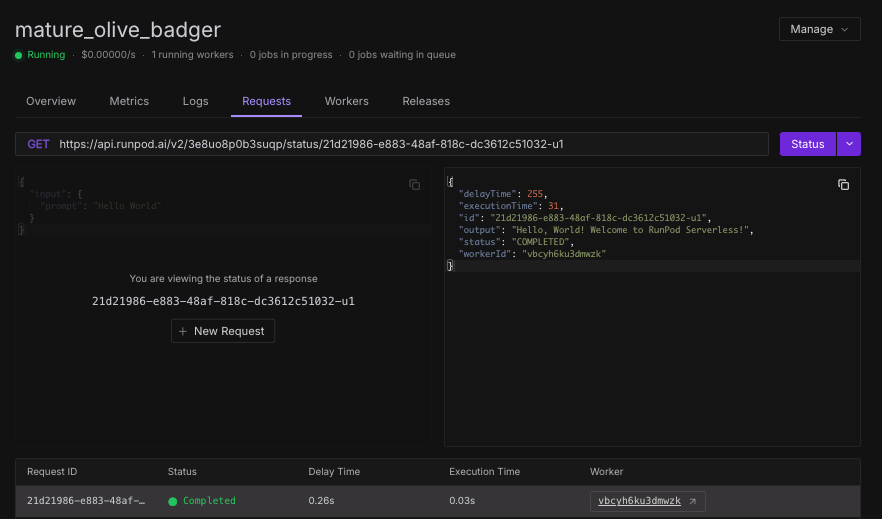
run: Asynchronous execution that immediately returns a response while the function continues processing in the background. The caller doesn't wait for the function to complete, and returns immediately with a job ID. Results are typically retrieved later via callbacks, webhooks, or polling. Programatically, you can send a GET request to get those results. But for now, the console will handle showing those results.
runsync: Returns the actual function result directly in the HTTP response.Ideal for real-time operations where the client needs immediate results, like API calls requiring fast responses.
And once you send the request, you should see a response come back!
Why Things Work This Way
Understanding the flow of data helps debug issues. Your handler function expects input in a specific format because Runpod needs a standardized way to communicate with all serverless functions. Docker containers need to be built locally first because they package up your code and all its dependencies into a portable unit. DockerHub acts as a central distribution point, like a public library where Runpod can fetch your container. And lastly, Runpod creates isolated environments for each request, ensuring security and resource isolation.
Next Steps
Now that you have a working serverless endpoint, you can:
Modify the handler to process different types of inputs
Add error handling and input validation
Experiment with different Python packages and dependencies
Try building endpoints that use GPU acceleration for ML models
Try out our GitHub integration and build your Docker image automatically from GitHub instead of locally
Remember that your handler can be as simple or complex as you need - from basic text processing to running sophisticated AI models. The deployment process remains the same regardless of the complexity of your application.
We've got further instructions in our docs if you'd like to read further. You're not at all limited to sending requests through the console on the Runpod platform; you can send requests through cURL with an API key from any application you choose.
Conclusion
You've now successfully created and deployed your first Runpod serverless endpoint! This foundation will help you understand how to deploy more complex applications on Runpod's infrastructure. Whether you're building AI applications, data processing pipelines, or web services, the basic workflow remains the same.
What's new in Runpod Serverless: Faster cold starts, batch inference, and no-Docker deploys
Whether you're already running production endpoints on Runpod or you're sizing us up for the first time, here's a plain-language tour of what Runpod Serverless does today, why it's faster and cheaper than it was six months ago, and how to deploy your first endpoint in minutes.
Beyond the Notebook: The Engineering Realities of Production AI Agents
Shift from stateless inference to stateful architectures to resolve infrastructure bottlenecks like memory management, concurrency limits, and runaway jobs in production AI agents.



.jpeg)