Your MCP server works perfectly right up until your laptop goes to sleep. Or a teammate tries to call it from their machine. Or your cloud agent hits it from a GitHub Actions runner and gets a connection refused. The process is gone, and so is your tool call.
Local MCP servers live and die with your development machine, which makes them a dead end for anything beyond a personal prototype. This guide covers what a remote MCP server actually needs and shows you how to deploy one on Runpod with two concrete examples: Playwright for browser automation, and a filesystem server that exposes a persistent volume to every agent on your team.
What Is an MCP Server?
An MCP server is a persistent HTTP service that exposes tools and data sources to LLM clients through a standardized protocol. Any compliant client can discover and call those tools, so you never hardcode an integration into the client itself.
The Model Context Protocol (MCP) connects LLM clients such as Claude Code, Cursor, Codex, and GitHub Copilot to external tools and data.
Transport is where remote hosting gets decided. With stdio, the client spawns the server as a subprocess and talks to it over stdin and stdout, which confines both to the same machine. The alternative is HTTP-based remote transport: the server runs as a persistent HTTP service that any client with network access can reach. Early remote implementations used separate /sse and /message endpoints, and the March 2025 spec revision replaced that with Streamable HTTP, a single endpoint handling both POST and GET that returns either a JSON response or an SSE stream depending on the operation. It has been the standard transport through every revision since, including the current 2025-11-25 spec, which still documents a fallback path for clients that meet an older server. Tutorials showing the two-endpoint setup will keep working, but nothing new should be built on it.
Why Local MCP Servers Break in Practice
A sleeping laptop takes the MCP server down with it. Any agent that was mid-task loses its tool connection and has no reconnect logic to fall back on, because the process it was talking to no longer exists.
An agent running on a remote server, or triggered from a CI job, cannot reach your localhost at all. Your server is invisible to it.
Then there is the team problem. Every developer runs a separate copy with its own process and its own config, those copies drift apart, and the infrastructure that should exist once exists once per laptop.
A persistent process behind a stable public endpoint takes the local machine out of the equation. Any client holding valid credentials reaches the same server over the network.
Infrastructure Requirements for a Remote MCP Server
The requirements are modest. The server process has to outlive individual tool calls, it needs a public HTTPS endpoint clients can reach, and it has to answer before the client gives up waiting. No GPU is involved unless the server itself runs a model, and nothing in the protocol asks for a particular region or network topology. A stable host with a public port covers it.
Both examples in this guide run on one pod, and they reach it by different routes. Playwright MCP already speaks HTTP, so clients call it directly on port 8931, and it drives a browser out to the web. The filesystem server speaks only stdio, so a bridge process called supergateway sits in front of it on port 3001 and passes requests through, serving files from a network volume mounted at /workspace. Any other stdio server drops into that second slot unchanged.
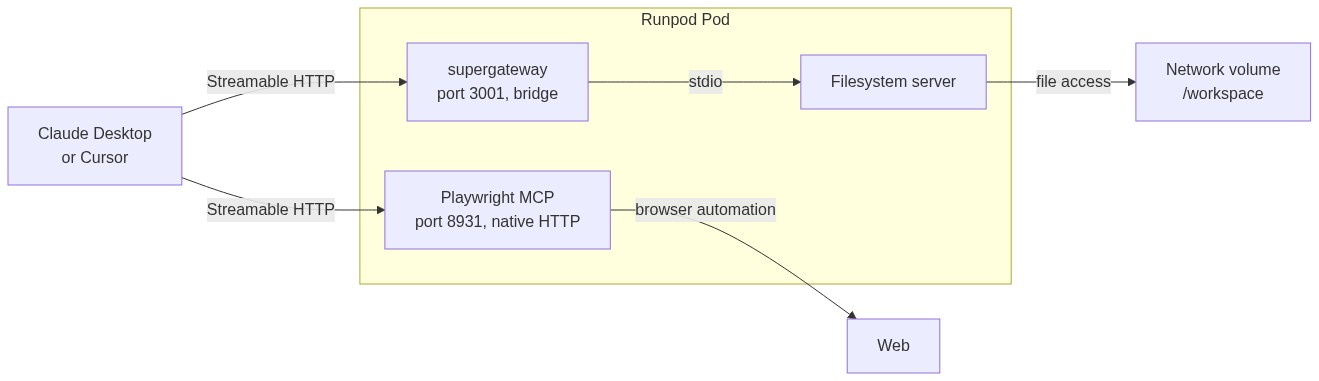
Native HTTP or a bridge is the only architectural decision this setup asks you to make.
Deploying a Remote MCP Server on Runpod
Runpod Pods give you a containerized compute instance with a public HTTP endpoint. The proxy URL format is https://[POD_ID]-[PORT].proxy.runpod.net, HTTPS-terminated and routed through Runpod's proxy infrastructure. Your service has to bind to 0.0.0.0 rather than localhost to be reachable through it.
One number shapes what you build here. The proxy runs through Cloudflare, which enforces a maximum connection time of 100 seconds: if your service has not responded by then, the connection closes with a 524. A response that starts streaming inside that window is fine, which is why Streamable HTTP's SSE mode handles long tool calls better than a single deferred JSON response. Work that cannot start producing output in 100 seconds belongs behind a directly exposed TCP port instead.
Step 1: Create a pod
In the Runpod console, click + New and select Pod. Choose a base image with Node.js already present, such as the official node:22-slim image, or any Ubuntu image where you install Node yourself. CPU-only is the cheaper default and the right one here.
The CLI covers the same ground, port exposure included:
# Needs runpodctl 2.3.0 or later (check with: runpodctl version)
# Attach the network volume now (ID from runpodctl network-volume list): it cannot be
# added once the pod exists. It mounts at /workspace.
# sleep infinity keeps the container up until Step 5 points the start command at your script.
runpodctl pod create \
  --name mcp-servers \
  --compute-type CPU \
  --image node:22-slim \
  --network-volume-id "[YOUR_NETWORK_VOLUME_ID]" \
  --ports "8931/http,3001/http" \
  --docker-args "sleep infinity"
Step 2: Expose your HTTP port
In the pod configuration, find the Expose HTTP Ports field and add the port your MCP server listens on (8931 in the examples below). Runpod generates a public URL in the format:
https://[POD_ID]-8931.proxy.runpod.net
Your clients point at that host plus the server's MCP endpoint path, usually /mcp.
Step 3: Set environment variables
Add any secrets your server needs (API keys, database credentials, auth tokens) as environment variables in the pod configuration, either during creation or afterward. The pod makes them available to your process at runtime.
Step 4: Attach storage that survives the pod
Container disk is ephemeral. Runpod's own docs are blunt about it: pod storage is lost when the pod is terminated, which takes your npm install -g and anything your server wrote with it. Attach a network volume and mount it at /workspace, the convention Runpod's templates use, and the data outlives any individual pod. Example 2 depends on this, and it is also what makes a rebuild painless rather than a reinstall.
Step 5: Start your server and keep it running
Point the pod's start command at a script that installs what you need and launches the server under a process manager:
#!/bin/bash
# Save as /workspace/start.sh on the network volume, then set the pod's start command to:
#   bash /workspace/start.sh
set -euo pipefail

PLAYWRIGHT_MCP_VERSION=0.0.78

# Keep global npm packages and the browser build on the volume, not the container disk
export NPM_CONFIG_PREFIX=/workspace/.npm-global
export PLAYWRIGHT_BROWSERS_PATH=/workspace/.ms-playwright
export PATH="$NPM_CONFIG_PREFIX/bin:$PATH"

npm install -g pm2 "@playwright/mcp@$PLAYWRIGHT_MCP_VERSION"

# Chromium downloads to the volume once. Its system libraries live on the container disk,
# which is cleared when the pod stops, so --with-deps reinstalls them on every start.
playwright-mcp install-browser --with-deps chromium

# tini runs as PID 1 and reaps the browser processes that closed sessions leave behind.
# It lives on the container disk too, so it is reinstalled on every start.
apt-get update && apt-get install -y --no-install-recommends tini

# pm2-runtime stays in the foreground and restarts the server if it crashes.
# --isolated gives each client session its own in-memory browser profile.
exec tini -s -- pm2-runtime start playwright-mcp --name playwright -- \
  --headless --browser chromium --no-sandbox --isolated \
  --port 8931 --host 0.0.0.0 --allowed-hosts "*"
If your start command exits, you are left with a dead server and, depending on how the pod is configured, a container that exits with it. pm2 restarts the process on crash and keeps it alive independently of any SSH session; forever or a supervised shell loop do the same job.
Example 1: Playwright MCP for Browser Automation
The Playwright MCP server (@playwright/mcp) is published by Microsoft and gives your agent a real browser it can navigate, click, type into, and read. It suits a Pod well because browser automation wants a process that is already warm when the call arrives, rather than one that starts up per request.
Microsoft publishes a prebuilt image with the browsers already installed, which is the shortest correct path. Set mcr.microsoft.com/playwright/mcp as your pod image and give it this start command:
--port 8931 --host 0.0.0.0 --allowed-hosts "*" --isolated
The image's own entrypoint defaults to stdio, so without --port and --host you get no HTTP server at all. --allowed-hosts is subtler: the server checks the Host header on every request and by default serves only the host it bound to. A request arriving through the Runpod proxy carries Host: [YOUR_POD_ID]-8931.proxy.runpod.net and comes back 403 Access is only allowed at localhost:8931. Since the proxy hostname does not exist until the pod does, * is the practical setting, and it is a real loosening that the authentication section picks up.
Your endpoint is then https://[YOUR_POD_ID]-8931.proxy.runpod.net/mcp, and your agent can call tools such as browser_navigate, browser_click, browser_type, and browser_snapshot.
Build your own image when you need system libraries the official one does not carry, or a browser you control:
FROM node:22-slim

# Debian's Chromium instead of Playwright's bundled build, plus fonts, CA roots, and tini,
# which runs as PID 1 and reaps the browser processes that closed sessions leave behind
RUN apt-get update \
 && apt-get install -y --no-install-recommends chromium fonts-liberation ca-certificates tini \
 && rm -rf /var/lib/apt/lists/*

# No default on purpose: the build passes the same version it puts in the image tag
ARG PLAYWRIGHT_MCP_VERSION
RUN : "${PLAYWRIGHT_MCP_VERSION:?pass --build-arg PLAYWRIGHT_MCP_VERSION}" \
 && npm install -g "@playwright/mcp@${PLAYWRIGHT_MCP_VERSION}"

USER node
WORKDIR /home/node
EXPOSE 8931

ENTRYPOINT ["/usr/bin/tini", "-s", "--", "playwright-mcp", "--headless", "--browser", "chromium", "--executable-path", "/usr/bin/chromium", "--no-sandbox"]
# Serve HTTP on all interfaces by default, one in-memory profile per session;
# a pod start command replaces these arguments
CMD ["--port", "8931", "--host", "0.0.0.0", "--allowed-hosts", "*", "--isolated"]
Build and push it with the version pinned in both the argument and the tag, so the image and its contents never drift apart:
VERSION=0.0.78
IMAGE="[YOUR_DOCKERHUB_USERNAME]/playwright-mcp"

# linux/amd64 matches Runpod's hosts, including when you build on an Arm machine
docker build --platform linux/amd64 \
  --build-arg PLAYWRIGHT_MCP_VERSION="$VERSION" \
  -t "$IMAGE:$VERSION" .
docker push "$IMAGE:$VERSION"
The pin fixes the image. Underneath it, @playwright/[email protected] still resolves to a prerelease [email protected], so "frozen" is a stronger word than this earns. The result lands near 900 MB, nearly all of it Debian's Chromium; the MCP server itself is about 18 MB.
Browser work is where that 100-second ceiling actually bites, since a slow or JavaScript-heavy page can exceed it. When splitting the task into smaller tool calls is not enough, the Expose TCP Ports field gives you a direct address that skips the proxy.
Example 2: A Filesystem Server, and the Bridge Pattern for Stdio Servers
Most MCP servers on GitHub speak stdio and nothing else, which is the case remote hosting exists to solve. The official filesystem server is a good specimen, and on Runpod it does something a laptop cannot: point it at the network volume from Step 4 and every agent, teammate, and CI job reads the same training data, model artifacts, and generated outputs, from the storage that already holds them.
Hosting a stdio server remotely takes a bridge that wraps the process in an HTTP endpoint. supergateway is the tool most people reach for:
# Install the filesystem server once: in stateless mode supergateway starts the --stdio
# command for every request, and npx would check the npm registry each time
npm install -g @modelcontextprotocol/server-filesystem
mkdir -p /workspace/shared
npx -y supergateway \
  --stdio "mcp-server-filesystem /workspace/shared" \
  --outputTransport streamableHttp \
  --port 3001
That starts an HTTP server on port 3001 speaking MCP over the wire and proxying tool calls to the stdio process underneath. From the client's side it is indistinguishable from a server that speaks HTTP natively. Expose 3001 the same way you exposed 8931, and both servers answer from the same pod.
The trailing path in the --stdio argument is load-bearing. The filesystem server takes its allowed directories as positional arguments and restricts every operation to them, so /workspace/shared grants access to that subtree and nothing else. On a publicly routable proxy URL, that scoping is your first line of defense: give it the narrowest directory that does the job, never the volume root.
Swap the --stdio argument and the same wrapper covers the git server, a database server, or anything you have built on the official MCP SDK that has not added HTTP transport yet.
Pointing Claude Desktop and Cursor at Your Remote Endpoint
Once your server is running, connecting a client is a short config edit. The two clients take different routes, and the difference trips people up.
Claude Desktop does not accept a remote URL in its config file. claude_desktop_config.json validates stdio servers only; a bare url key is silently ignored. Either add the server through Settings → Connectors → Add custom connector, which is the supported path, or bridge it with mcp-remote so the config file sees a local stdio process:
{
  "mcpServers": {
    "playwright": {
      "command": "npx",
      "args": ["-y", "mcp-remote", "https://[YOUR_POD_ID]-8931.proxy.runpod.net/mcp"]
    },
    "filesystem": {
      "command": "npx",
      "args": ["-y", "mcp-remote", "https://[YOUR_POD_ID]-3001.proxy.runpod.net/mcp"]
    }
  }
}
Cursor takes the URL directly. Add this to .cursor/mcp.json in your workspace or to the global Cursor settings:
{
  "mcpServers": {
    "playwright": {
      "url": "https://[YOUR_POD_ID]-8931.proxy.runpod.net/mcp"
    },
    "filesystem": {
      "url": "https://[YOUR_POD_ID]-3001.proxy.runpod.net/mcp"
    }
  }
}
Restart the client after editing the config. Both clients connect on startup and list the available tools in their UI.
Authentication for Remote MCP Servers
The Runpod proxy URL is public by default, so anyone who knows it can send requests to your MCP server. Point that server at your team's data and the stakes stop being theoretical.
Three controls do the work, and none of them substitutes for the others.
Scope the server's reach. Pass the narrowest allowed directory, the narrowest database role, the narrowest API token the server needs. Whatever the transport lets through, the server can still only act inside that boundary.
Require a token. Set one as an environment variable in your pod configuration:
MCP_AUTH_TOKEN=your-secret-token
Your server reads process.env.MCP_AUTH_TOKEN at startup and rejects any request without a matching Authorization: Bearer header. The common MCP server frameworks all have middleware hooks for this. On the client side, pass the header in the config:
{
  "mcpServers": {
    "my-mcp-server": {
      "url": "https://[YOUR_POD_ID]-[PORT].proxy.runpod.net/mcp",
      "headers": {
        "Authorization": "Bearer ${env:MCP_AUTH_TOKEN}"
      }
    }
  }
}Validate the Origin header. The spec makes this a MUST for Streamable HTTP servers, to stop a web page in someone's browser from reaching your endpoint through a DNS rebinding attack. It is the control most self-hosted deployments skip, and binding to 0.0.0.0 for the proxy is exactly the configuration it exists to protect.
Example 1 switches off a guard from the same family: --allowed-hosts "*" disables Playwright MCP's Host check. Since Host and Origin defend overlapping ground, the token and the scoping carry more of the load once it is gone. Make that trade deliberately.
A shared token is reasonable for a solo developer or a small team. Once several people depend on the server, per-user tokens and a dedicated auth layer in front of it become worth the setup, since a shared secret cannot be revoked for one person.
Frequently Asked Questions
What's the difference between stdio and HTTP transport in MCP?
Stdio ties the client and server to one machine; HTTP does not. That one fact decides your hosting: a stdio-only server needs the bridge from Example 2, while a server that already speaks HTTP just needs a port.
Do I need a GPU pod on Runpod to run an MCP server?
Rarely. Browser automation, file access, and API calls are I/O work, and CPU pods are priced accordingly. The exception is a server running a model of its own.
Why won't Claude Desktop connect to my remote server?
Almost always one of two things: a url key in claude_desktop_config.json, which that file does not support, or a missing /mcp path on the endpoint. Use Settings → Connectors or the mcp-remote bridge, and check the path your server actually serves.
My server returns 403 Access is only allowed at localhost:8931. What's wrong?
The Host header your proxy URL carries is not the one the server bound to. Add --allowed-hosts "*" to the start command. Microsoft's prebuilt image needs it too.
How do I keep my MCP server running when the pod restarts?
Two failures, two answers. A crashed process is pm2's job. A terminated pod takes its container disk along, so whatever has to outlive the pod belongs on the network volume.
Can multiple LLM clients connect to the same remote MCP server simultaneously?
Yes. An MCP server over HTTP handles concurrent connections the way any HTTP service does, so Claude Desktop, Cursor, and a CI agent can all call tools on the same pod at once, subject to whatever concurrency limits the server itself imposes.
What causes a 524 error when using Playwright MCP on Runpod?
Cloudflare gave up after 100 seconds. Where it happens tells you which fix you need: one slow page points at task splitting, while a 524 on every call usually means your server is buffering a whole response instead of streaming it.
How do I wrap a stdio-only MCP server for remote HTTP access?
Put supergateway in front of it, as shown in Example 2, and pass --outputTransport streamableHttp so it speaks the current transport rather than its SSE default.
Is the Runpod proxy URL secure enough for production use?
No. HTTPS protects the traffic, not the endpoint, and the URL is not a secret. Your real exposure is whatever the server can reach, which is why scoping it narrowly does as much work as the token does.
Wrapping Up
Moving from local to remote MCP is mostly a hosting problem. Take the server you already run, give it a persistent process behind a public endpoint, and every client that could not reach it before now can. A Runpod pod supplies both halves of that. Playwright shows the case where the server already speaks HTTP and a prebuilt image does the heavy lifting; the filesystem server shows the far more common case, a stdio-only process that needs a bridge and benefits from sitting next to the data it serves.
Two things are worth settling before you deploy. Pods bill by the second for as long as they run, busy or idle, which is the cost of keeping a browser warm and a volume mounted; Serverless bills only while a worker is actually handling a request, so it fits bursty work and not always-on tools. And compute type is fixed at creation, so decide the GPU question up front: moving to GPU later means deploying a new Pod and attaching the same network volume to carry your data across. Runpod's Pods documentation walks through image selection and port configuration.