How to Use Runpod’s Fast Stable Diffusion Template
Learn how to deploy Stable Diffusion quickly on Runpod using the fast template, including GPU selection, configuration options, and inference steps. This.
If you're interested in using the Fast Stable template, this blog post will guide you through the process.
First off, it's important to note that the Fast Stable template is not compatible with encrypted volumes, so keep that in mind before getting started.
The Fast Stable template is a Runpod packaged template for stable diffusion, but it's important to note that Runpod team doesn't maintain the code for this template. We simply package it to make it easier for you to use. If you need help with settings or have questions, feel free to ask on Runpod discord, but keep in mind that we are not experts in stable diffusion. Though we do our best to help, but the RP community or automatic/stable diffusion communities may be better resources for you.
When using the Fast Stable template, it's important to wait until the GPU/CPU Utilization % is at 0 before attempting to connect. If you try to connect before the pod is ready, you'll likely receive a 502 error.
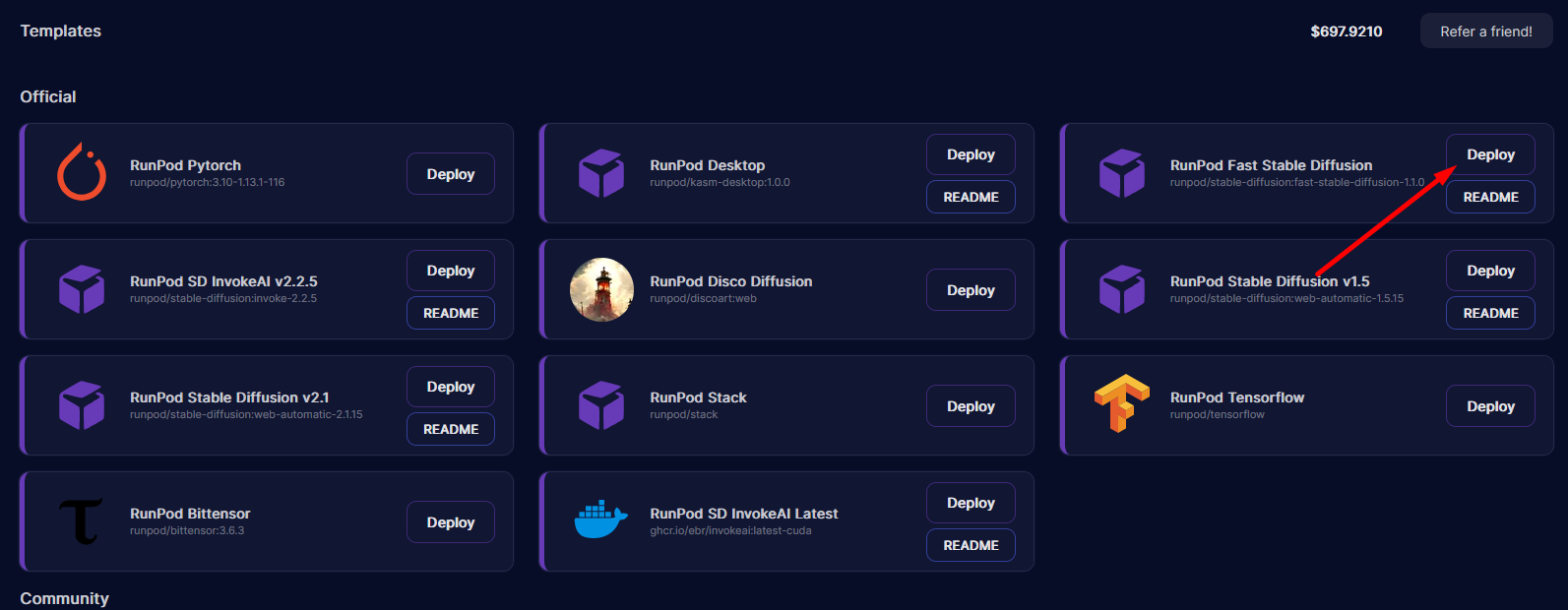
To start Fast Stable Diffusion template head over to the Templates page and select the template, or just click on this link.
How to find the template
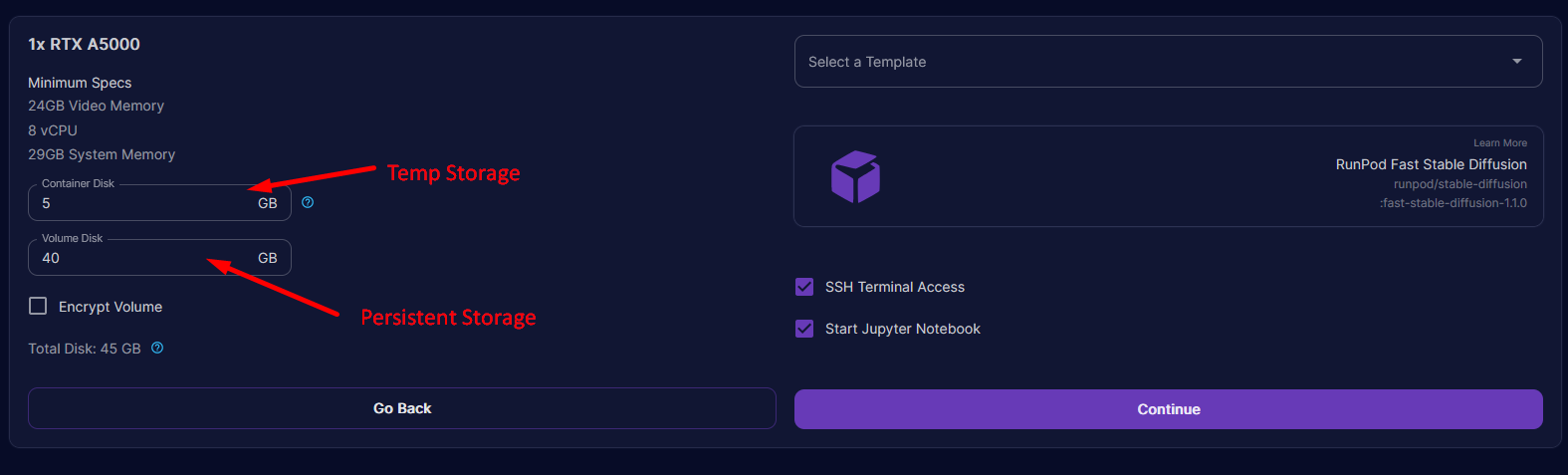
Before creating pod you have option to give additional storage for your pod. This template supports running AUTOMATIC1111 web UI but also has custom templates for training your own models using Dreambooth.
Volume storage is being used to store generated images and also storing custom models
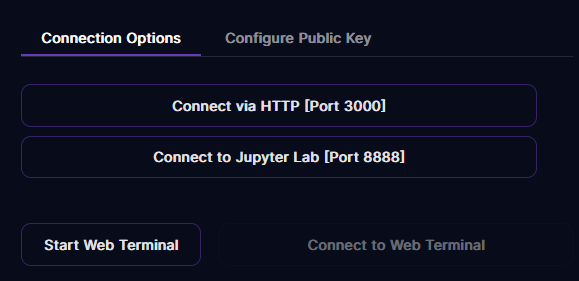
To get started with the Fast Stable template, connect to Jupyter Lab. From there, you can run the automatic1111 notebook, which will launch the UI for automatic, or you can directly train dreambooth using one of the dreambooth notebooks.
To access Jupyter Lab notebook make sure pod is fully started then Press Connect
First option is to connect to automatic UI though we going to Jupyter button first
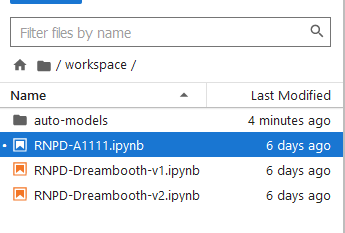
To start A1111 UI open RNPD-A1111.ipynb file by double-clicking it
Template comes with three notebooks 1 for 1111 UI and other 2 for training
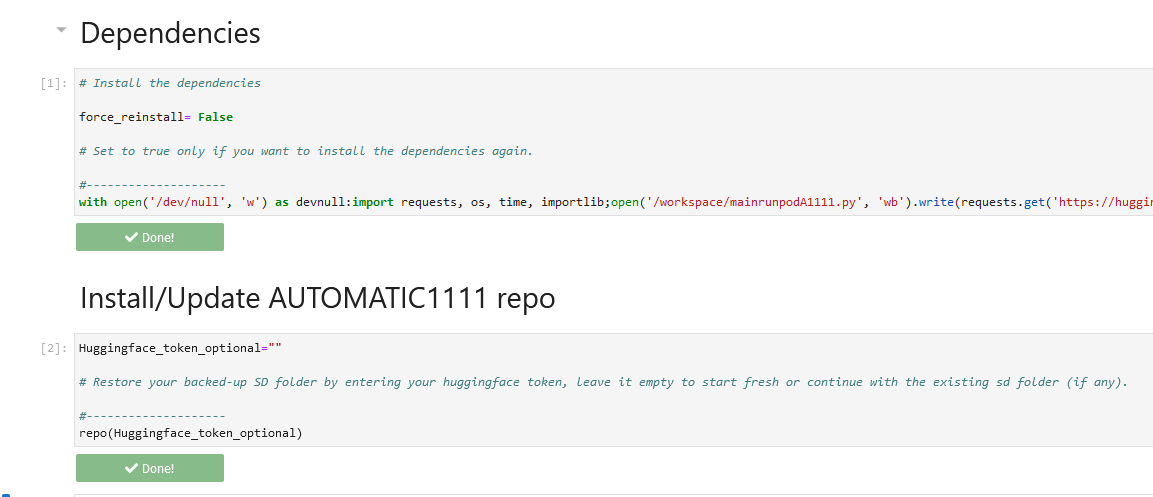
After you have open notebook you need to run first 2 cells the first one will install required packages and second one allows you to use own HuggingFace token for model downloads.
After it run without issues you will see Done buttons
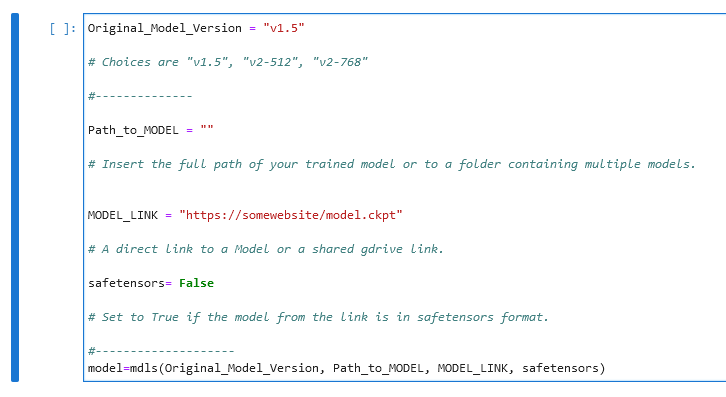
Now we are moving to selecting SD m0del we want to use
Some models will require you to have HuggingFace token provided in previous step
First option allows you to pick base SD model that will be downloaded from HuggingFace all you need is to replace v1.5 with model you want. You can also give direct link or google drive link to ckpt or safetensor file by replacing MODEL_LINK section (it will download that model instead of base)
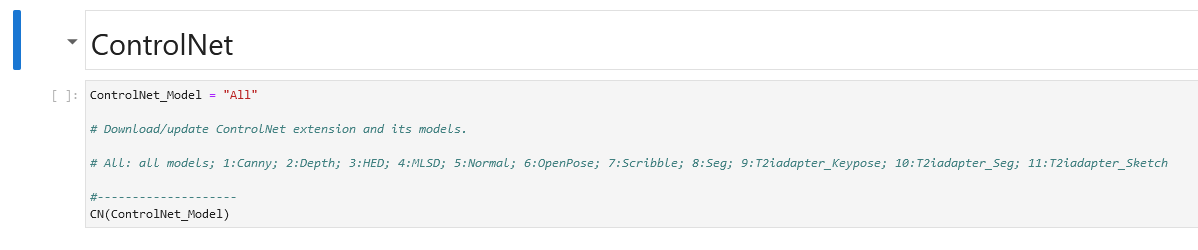
If you plan to use ControlNet with 1111 UI you can easy download required models using next cell.
NOTE: ControlNet models are very large, so selecting them all will incur a pretty long download (50+GB!!). UPDATE: We pruned them down a bit so it's much more manageable now :)
Replace "All" with your choice or pick model from list
Starting 1111 UI
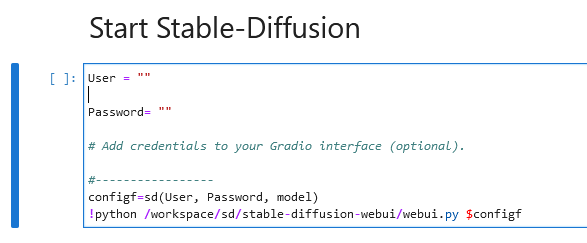
Now we finally can start web UI by running this next cell. Make sure that you run the other cells first! This cell does depend on the dependency cell, the A1111 cell, and the model cell. You can skip ControlNet if you aren't planning to use it!
You can protect web UI by setting username and password for access or leave it to not use any protection.
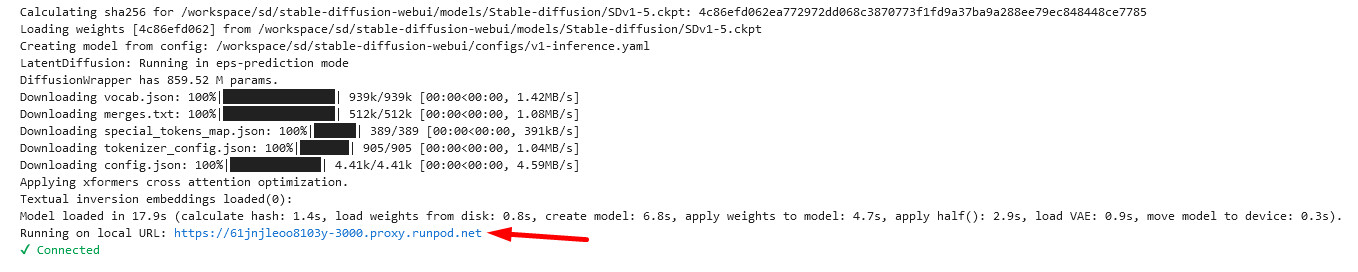
After 1111 UI starts you will see link to your web UI. You can also access it from connect button on Runpod website.
Note: Anyone with access to that link can access 1111 UI so it's advised to set username and password for better security!
Customization
If you want to change the launch parameters, you can do so in the "Start Stable-Diffusion" cell in the RNPD-A1111.ipynb notebook. You can change the launch params by changing this line: !python /workspace/sd/stable-diffusion-webui/webui.py $configf.
Hopefully, this blog post has given you a better understanding of how to use the Fast Stable template. If you have any questions or need help, don't hesitate to send message on Runpod's Discord or other communities for support.
What's new in Runpod Serverless: Faster cold starts, batch inference, and no-Docker deploys
Whether you're already running production endpoints on Runpod or you're sizing us up for the first time, here's a plain-language tour of what Runpod Serverless does today, why it's faster and cheaper than it was six months ago, and how to deploy your first endpoint in minutes.
Beyond the Notebook: The Engineering Realities of Production AI Agents
Shift from stateless inference to stateful architectures to resolve infrastructure bottlenecks like memory management, concurrency limits, and runaway jobs in production AI agents.



.jpeg)