InvokeAI Stable Diffusion on Runpod: Easy GPU Setup
InvokeAI is a creative engine for Stable Diffusion models. Launch it on Runpod when you want GPU-backed image generation without a local setup.
InvokeAI is a web-based creative engine for Stable Diffusion models used to generate, refine, and build visual AI workflows. This guide shows how to launch InvokeAI on Runpod when you want GPU-backed image generation without setting up CUDA and model dependencies locally.
Ever wanted to try invoke ai's awesome stable diffusion infinite canvas out, but didn't want to go through the hassle of installing a bunch of stuff? Maybe you just don't have a local GPU that can run it fast enough? No worries, we've got you covered with our easy deploy template for invoke ai!
If you don't have a powerful Nvidia GPU at home or you just don't want to go through the hassle of installing a bunch of drivers and managing dependencies, here's a really easy way to get started with invoke ai!
Just make sure to go to https://www.runpod.io/ and sign up for an account. Load up as little as $10 to get started.
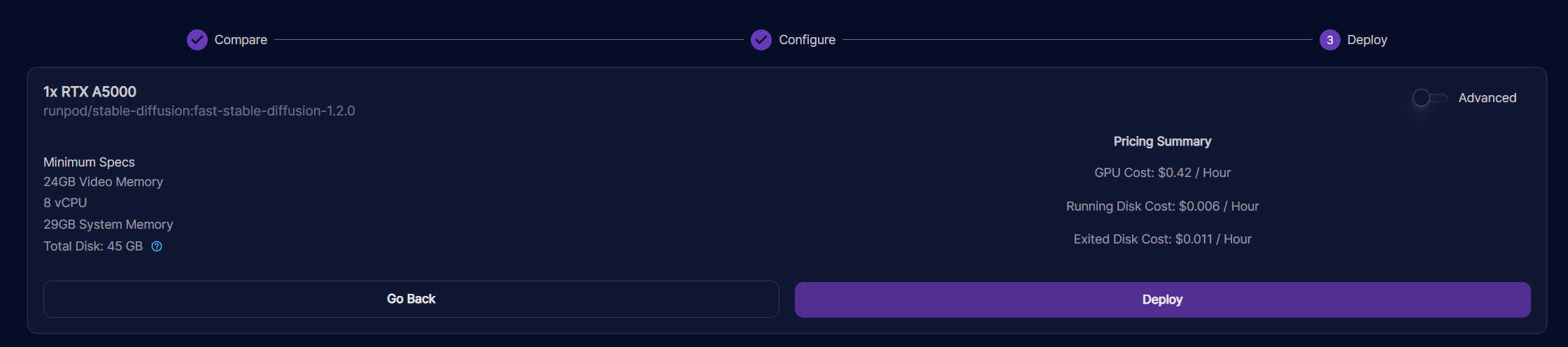
I would recommend picking a 3090 GPU for this.
You can configure other settings to your liking, like requesting more disk space, or you can leave everything else default!
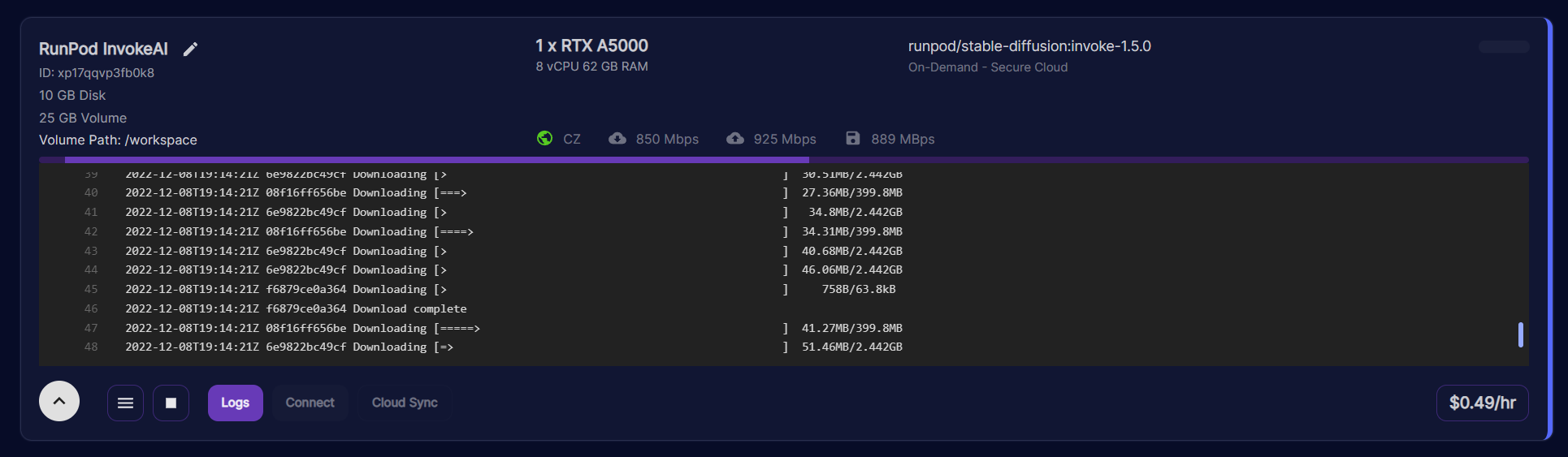
The new Invoke AI template does take a bit longer to set up, so this could take a few minutes or more depending on your pod's internet connection and CPU speed; please be patient! The older one started faster, but was harder to keep up to date with the latest features.
You will know when your pod is ready when the CPU Utilization drops to 0%. This may take a minute or two.
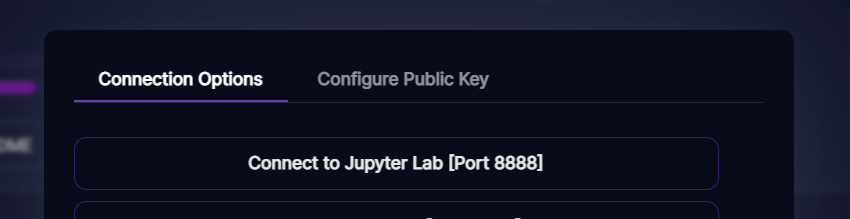
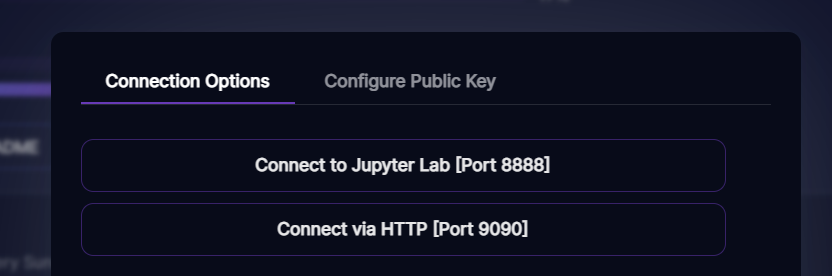
After a few minutes, you can click Connect and then connect to jupyter lab:
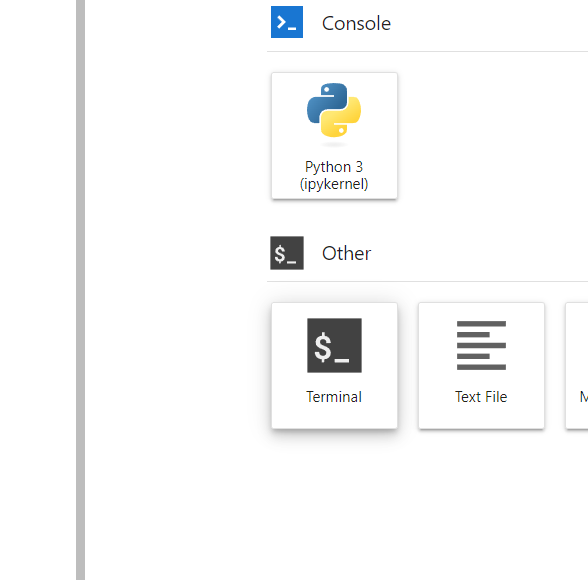
Once you're in jupyter, start a terminal tab:
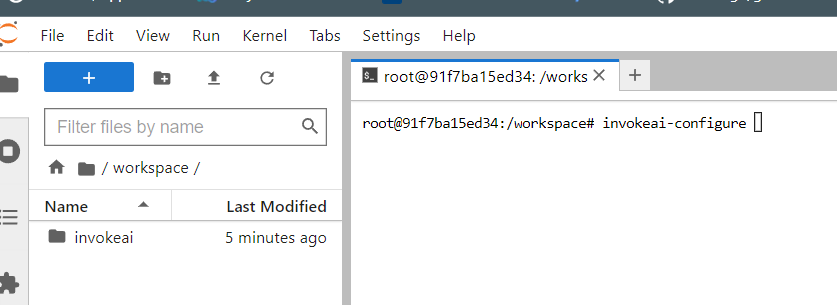
Then type invokeai-configure in your terminal window:
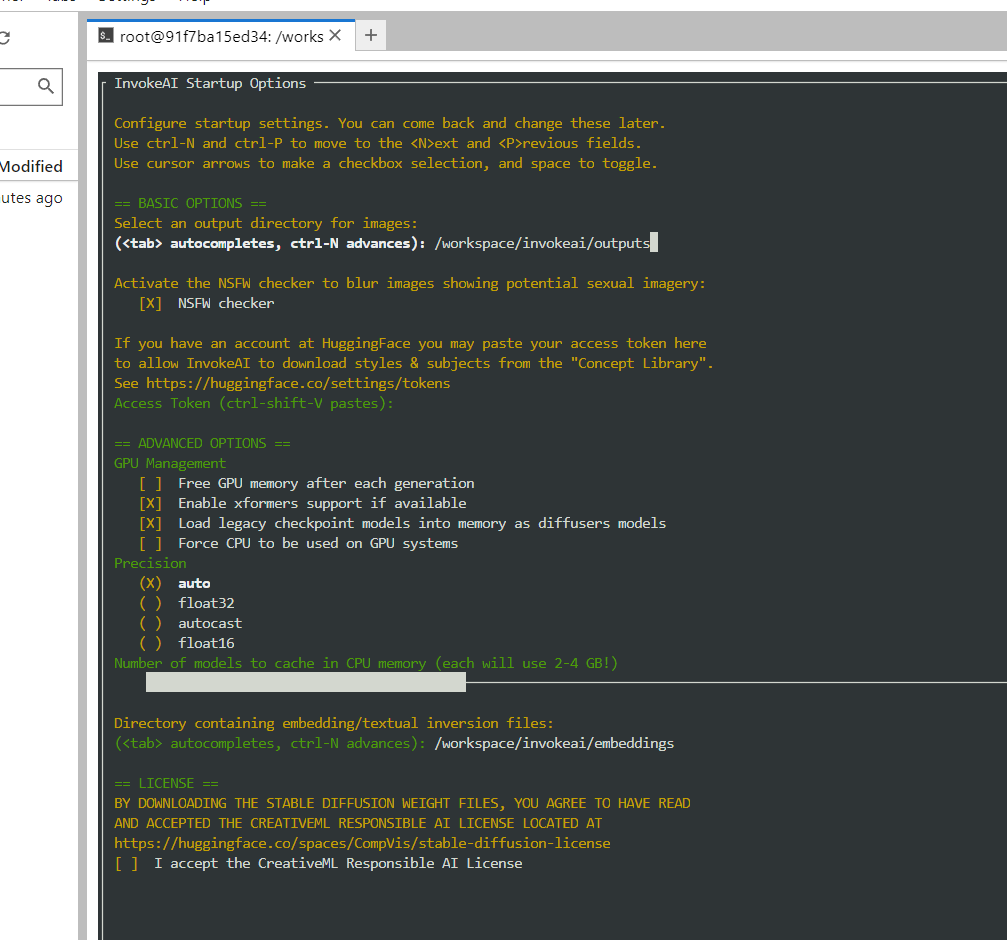
You should be presented with a menu of configuration options. Go through the menu options and make your choices to customize your invokeai experience.
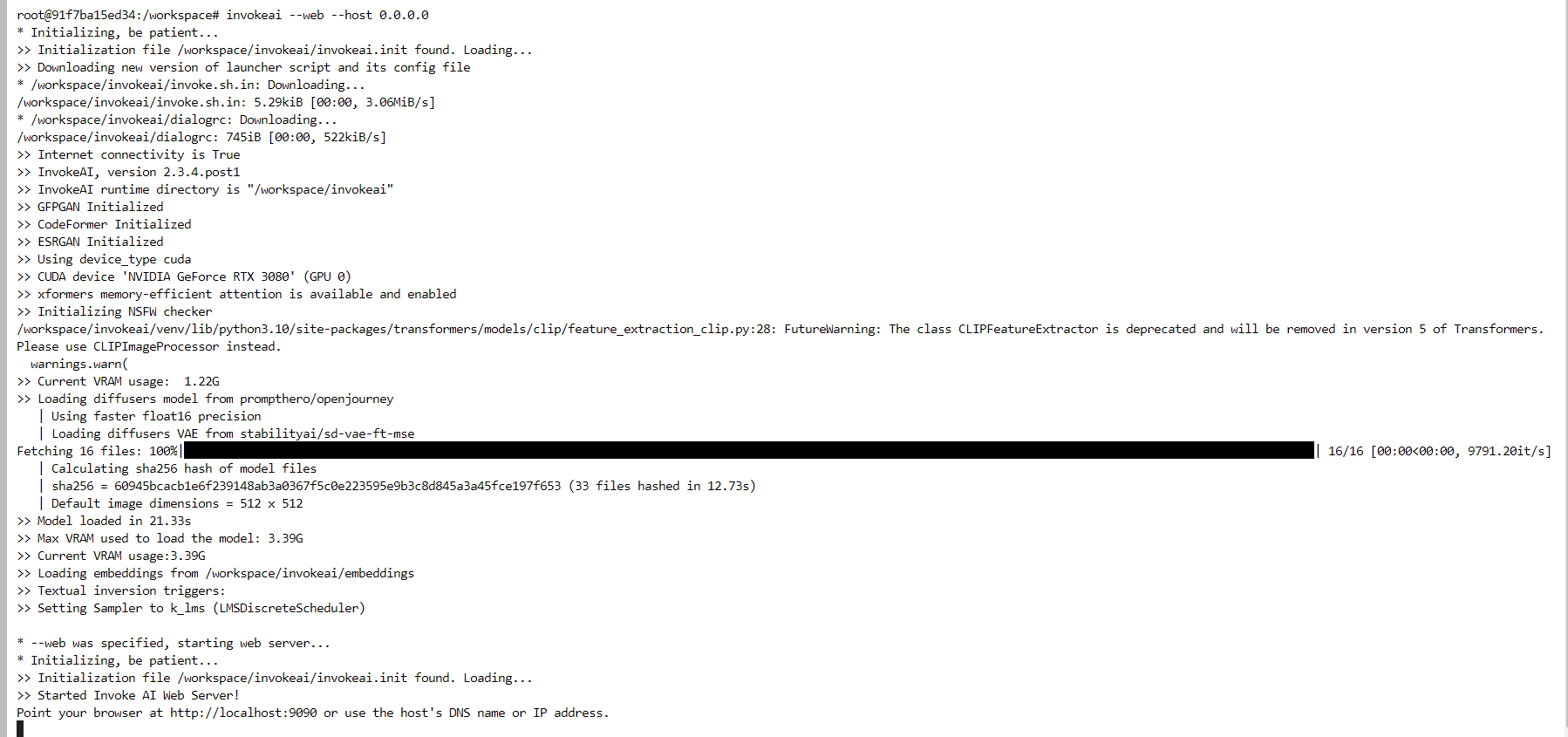
Once this is complete, you should be able to launch the invoke UI by typing invokeai --web --host 0.0.0.0
in a terminal window.
Go back to your pod dashboard, where you can now connect via port 9090
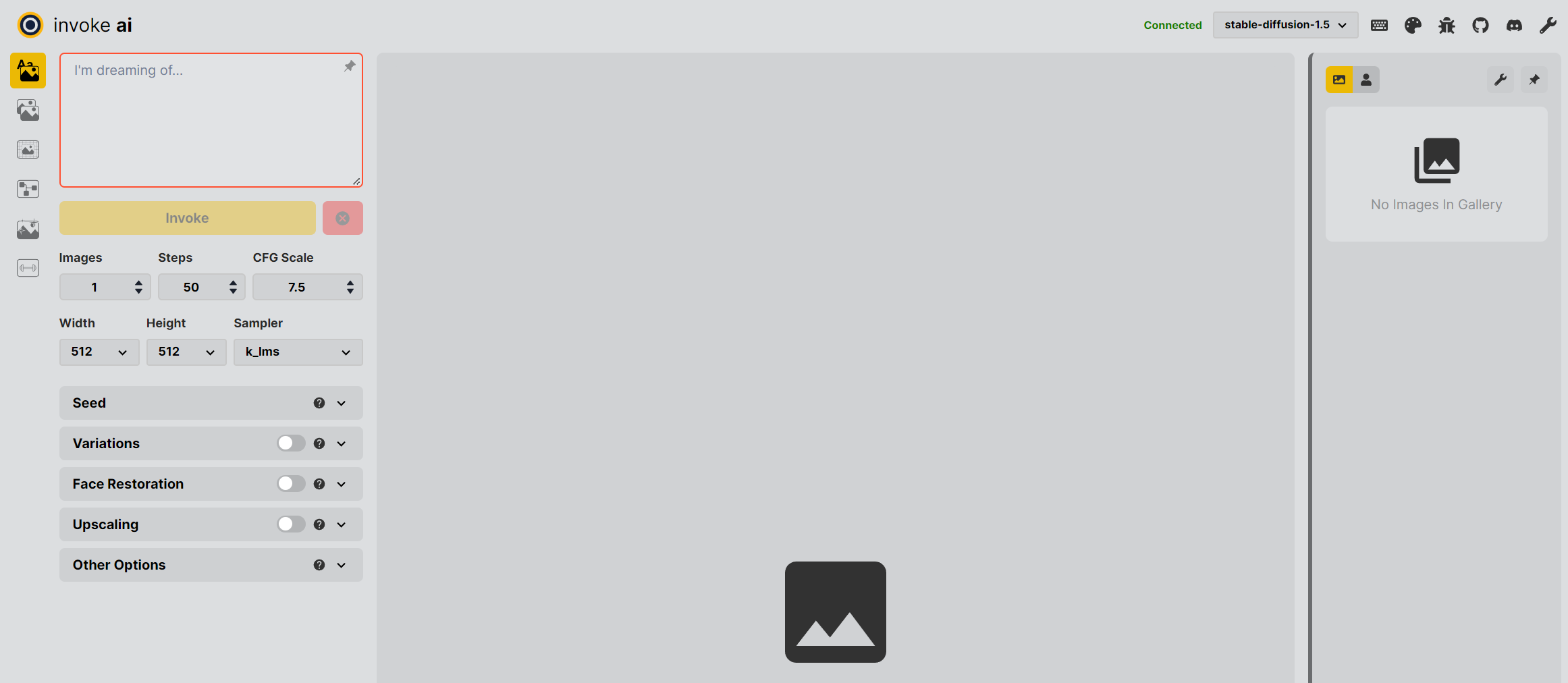
You should then be directed to the invoke ai starting page
Here are some cool videos made by the Invoke team showcasing their UI!
What's new in Runpod Serverless: Faster cold starts, batch inference, and no-Docker deploys
Whether you're already running production endpoints on Runpod or you're sizing us up for the first time, here's a plain-language tour of what Runpod Serverless does today, why it's faster and cheaper than it was six months ago, and how to deploy your first endpoint in minutes.
Beyond the Notebook: The Engineering Realities of Production AI Agents
Shift from stateless inference to stateful architectures to resolve infrastructure bottlenecks like memory management, concurrency limits, and runaway jobs in production AI agents.



.jpeg)