Which GPU should you actually use for embedding workloads?
Selecting the right serving engine for your embedding model can dramatically outperform hardware upgrades, yielding up to an 11x throughput increase on the same GPU.
All
 Skip to main content
Blog
Use the VS Code Server template on Runpod to connect your local VS Code editor to a GPU-powered development pod, offering a seamless remote dev experience.

Experience a new level of development with Visual Studio Code (VS Code) and Runpod. This guide will walk you through using the VS Code Server template on Runpod, enabling you to leverage GPU instances for your development needs. By the end of this tutorial, you will be able to interact with your code directly from your locally installed VS Code.
Before we start, ensure you have the following:
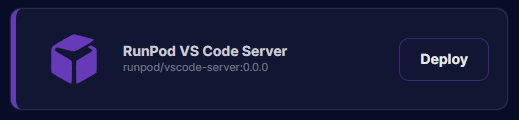
Navigate to the Runpod interface and select the Runpod VS Code Server template. Click on "Deploy" to launch your development server. Once you've initiated the deployment, proceed to the "My Pods" section and wait for your pod to become ready.
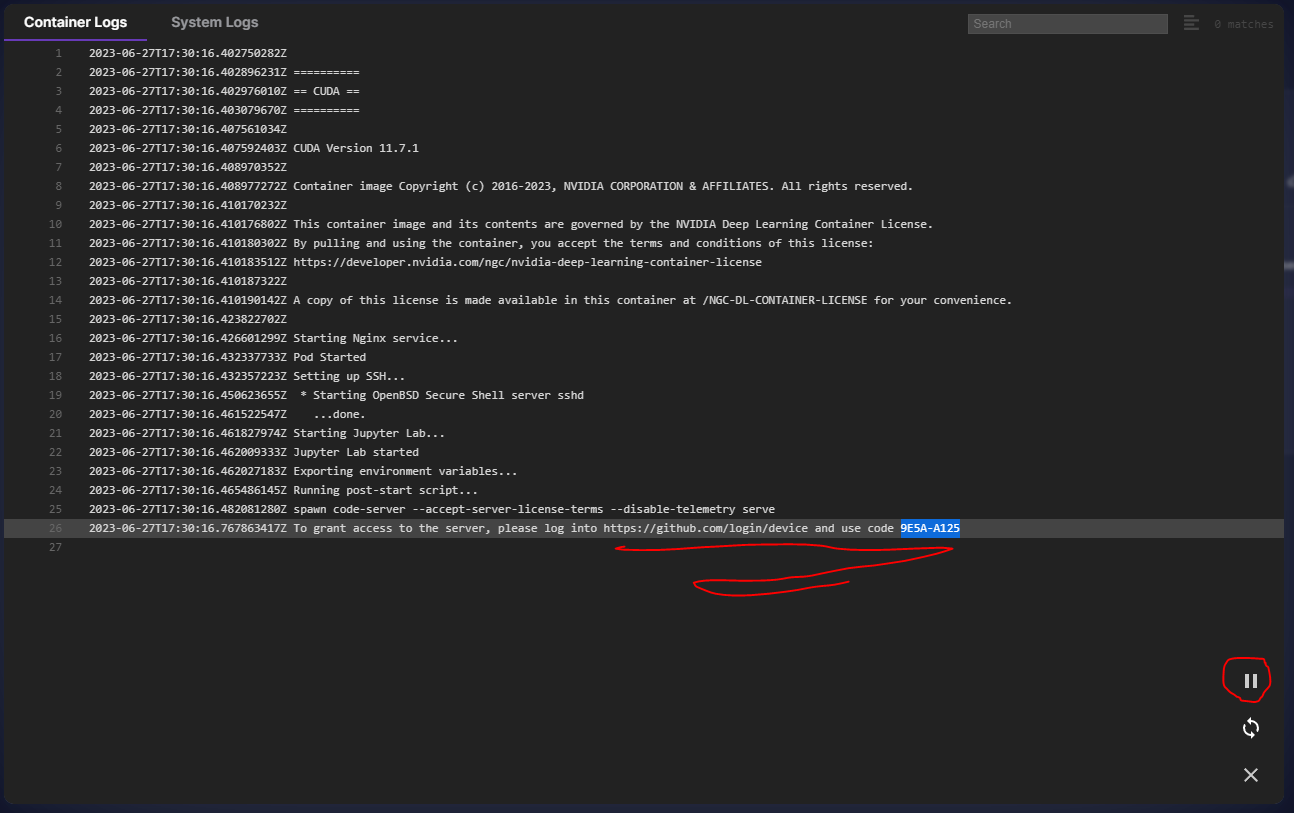
Within the "My Pods" section, find your pod, select "Logs", and then select "Container Logs". This will give you access to the logs of your VS Code Server.
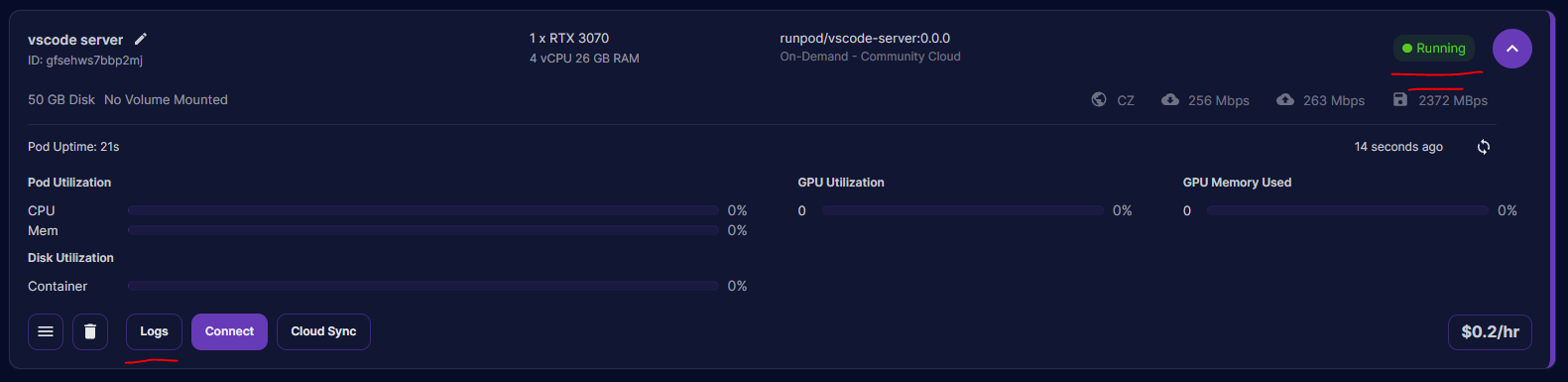
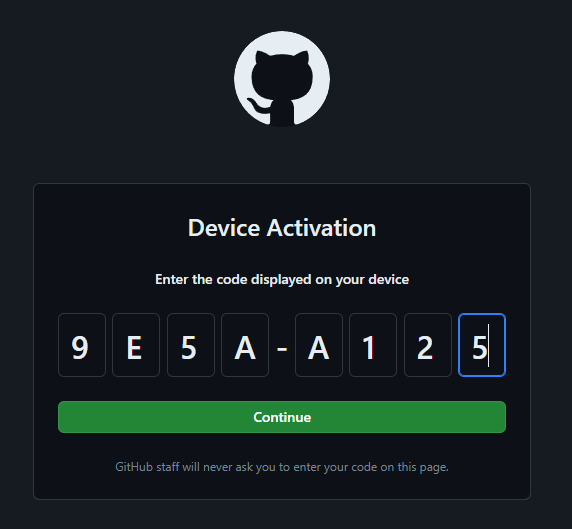
In your container logs, you will find a unique code for registering your VS Code Server. Copy this code, open a new window, and navigate to https://github.com/login/device. Paste the copied code into the provided field on this page. Before proceeding, ensure that there is a pause symbol in the lower right side of the log screen (not a play button). Click "Continue", authorize access, and your VS Code Server will be ready to use.

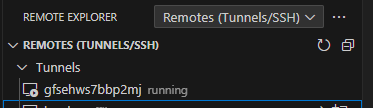
Open VS Code on your local machine. In the "Remote Explorer" section, you should see an option to connect to the server. Follow the prompts to establish a connection to the VS Code Server running on your Runpod instance.
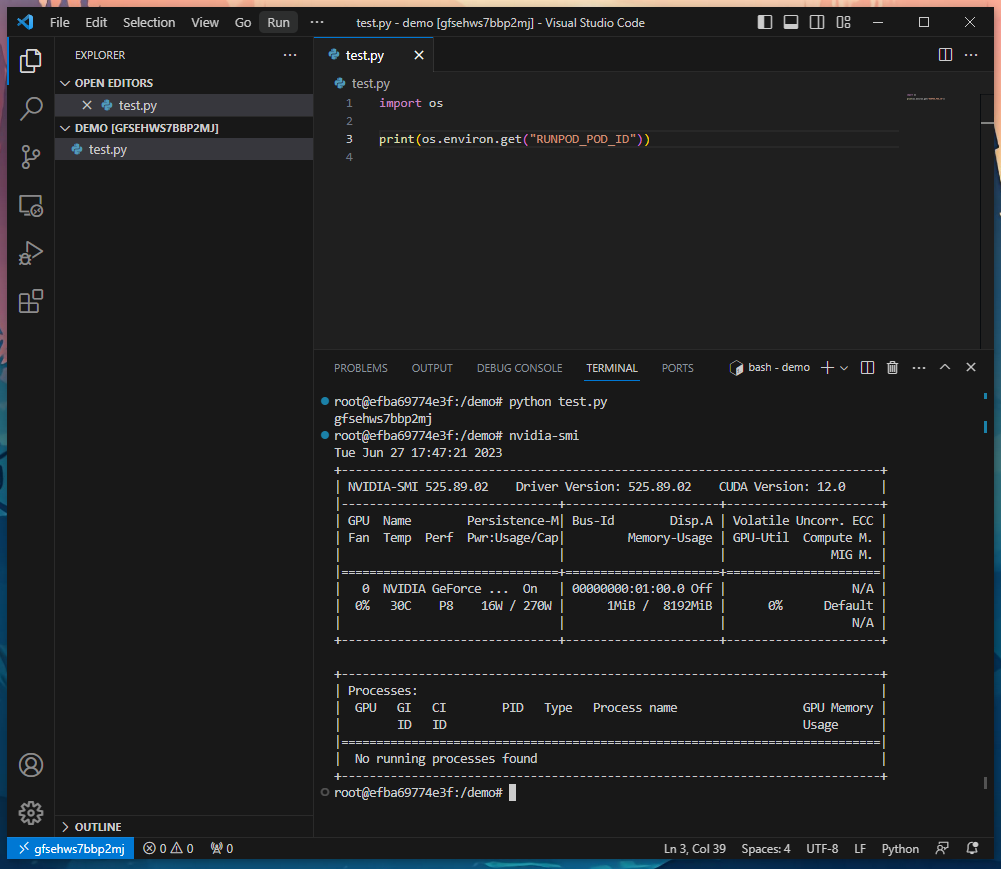
Congratulations! You are now directly connected to your Runpod instance using VS Code. Enjoy the familiar functionality of VS Code while also having the power to develop directly on a GPU-backed system!
Author profile: Justin Merrell
Blog Posts